

Who Can Do This
Change the Plan
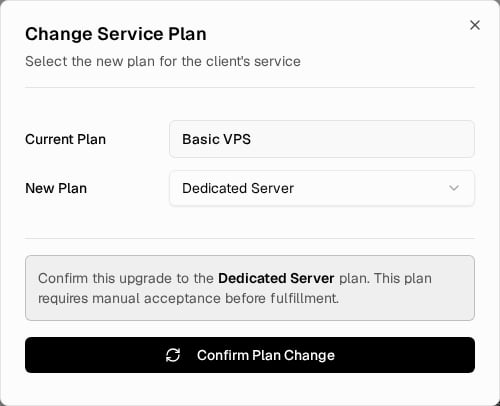
Change Service Plan Dialog
1
Open the Service
Select Services in the sidebar, find the service in Client Services, then select Manage.
2
Open the Plan Change Dialog
Find Upgrade/Downgrade under Service Actions and select Change Plan to open Change Service Plan.
3
Select the New Plan
Check Current Plan, open New Plan, and select the required catalog plan. The list shows the other active plans that are eligible for the service and excludes the current plan.
4
Confirm
Review whether the change is an upgrade or downgrade, then select Confirm Plan Change.
The panel creates a service request with the Upgrade or Downgrade type. If the same target plan already has a Pending or Processing request for the service, the panel reuses that request. Do not submit the same change again.
Upgrade or Downgrade: How the Panel Decides
Upgrade or Downgrade: How the Panel Decides
The panel determines the direction from the current plan’s rank and the selected plan’s rank in your broker catalog. Your available plans can use custom names. A move to a higher rank is an upgrade, and a move to a lower rank is a downgrade.
Automatic vs Manual Fulfillment
Automatic vs Manual Fulfillment
For an automatically fulfilled plan, the confirmation states that the request will be queued for processing.For a manually fulfilled plan, it states: This plan requires manual acceptance before fulfillment.
Smaller Disk on the New Plan
Smaller Disk on the New Plan
When the new plan has a smaller disk than the VPS currently has, the VPS gets the new plan’s CPU and RAM but keeps its current disk size.
Track the Request
1
Check the Service Log
Review the plan-change event in the service’s Service Log.
2
Or Open Requests
Alternatively, select Requests in the sidebar and filter Service Requests by Upgrade or Downgrade.
3
Open Request Details
Select View to open Request Details.
When Broker Approval Is Needed
When Broker Approval Is Needed
An automatically fulfilled plan change from the service page does not require a separate broker approval. A plan that requires manual acceptance remains pending until it is reviewed.
Complete the Plan Change
A VPS plan change is not active until it is completed. The server restarts during completion, so you or the client decide when it happens. The panel never restarts the server automatically. The client can complete the change from the link in the WHMCS email. When the client completes it, you do not need to do anything in the panel. To complete it yourself:1
Open the Service
Select Services in the sidebar, find the service in Client Services, then select Manage. A banner at the top of the page shows the pending change.
2
Complete the Change
Select Complete Upgrade or Complete Downgrade. The panel queues the completion. It runs in the background, usually within a few minutes. You can leave the page.
When the completion is done, the banner goes away and the service shows the new plan. If the completion fails, the banner returns to Pending and NYCServers is alerted. You can try again later.
If the client already completed the change in WHMCS, the panel does not restart the server again. It confirms the new resources and closes the change.
Next Step
Cancel a Service
Stop a service the client no longer needs.