

Who Can Do This
Open Account Settings
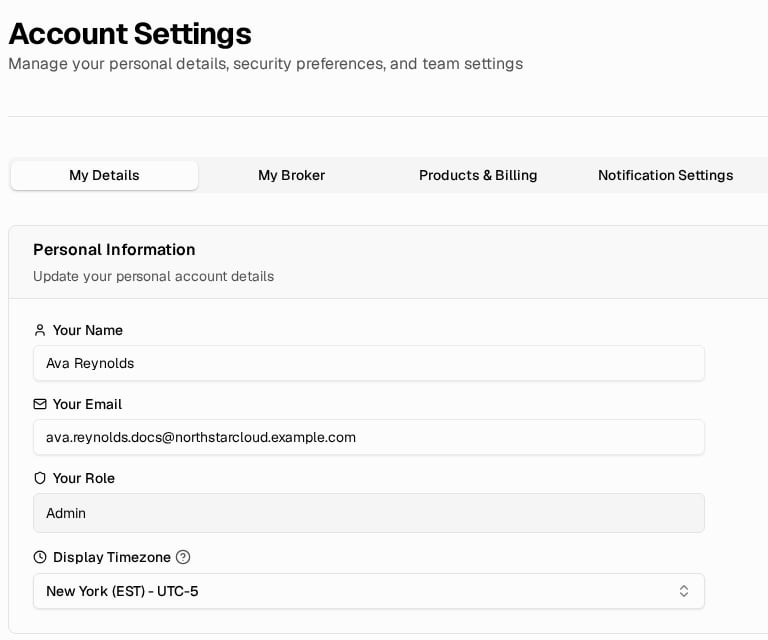
Account Settings on My Details
1
Open the User Menu
Select the user menu in the top-right corner.
2
Open Account Settings
Select Account Settings.
Update My Details
1
Open My Details
Select My Details.
2
Change Your Name or Email
Change Your Name and Your Email if required.
3
Save
Select Save Changes. The panel saves the name and email to your user account.
Name and Email Rules
Name and Email Rules
The name and email cannot be empty. The email must not belong to another broker user.
Role Display
Role Display
Your Role shows your current Admin or Staff role. You cannot change this value in My Details. An Admin user can change team member roles in Team Management.
Set the Display Timezone
1
Open Display Timezone
Select My Details. Open Display Timezone.
2
Choose a Timezone
Search for a timezone or review the regional groups. Select a timezone.
3
Save
Select Save Changes. The panel saves the timezone for your user account.
Where the Timezone Applies
Where the Timezone Applies
The panel uses this timezone for supported time displays and scheduled reports. Your personal timezone applies if set. Otherwise, the broker default applies.
Review Products and Billing
Select Products & Billing to review the active plan catalog assigned to your broker.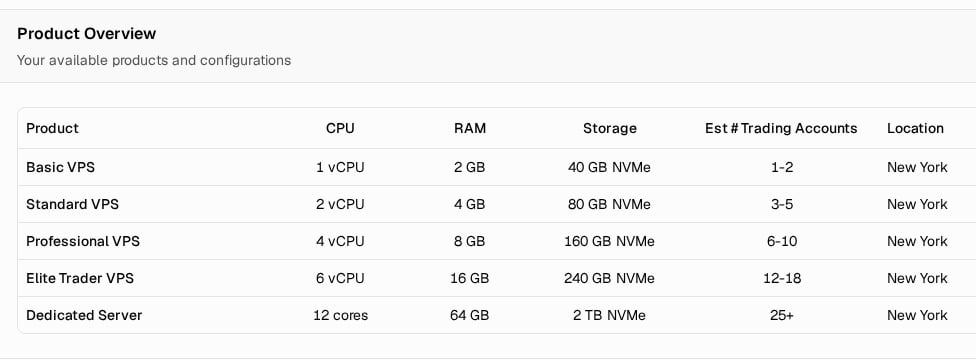
Product Overview
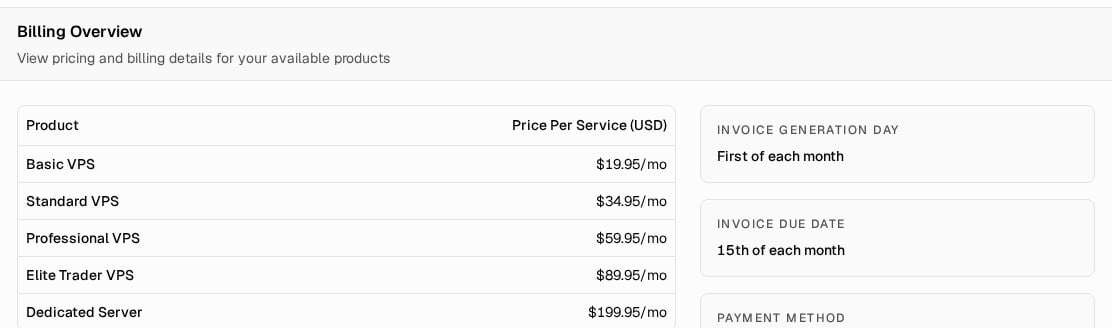
Billing Overview
Plan Names, Location, and Missing Values
Plan Names, Location, and Missing Values
Plan names and specifications come from your broker catalog, so they can differ from the standard plan names. The location uses the broker’s default VPS location. A missing value appears as N/A, —, or Not set, depending on the field.
Card vs Bank Wire
Card vs Bank Wire
When the broker uses a card, the payment-method control links to saved payment methods. When the broker uses bank wire, the configured bank-wire label appears without that link.
Set Email Notifications
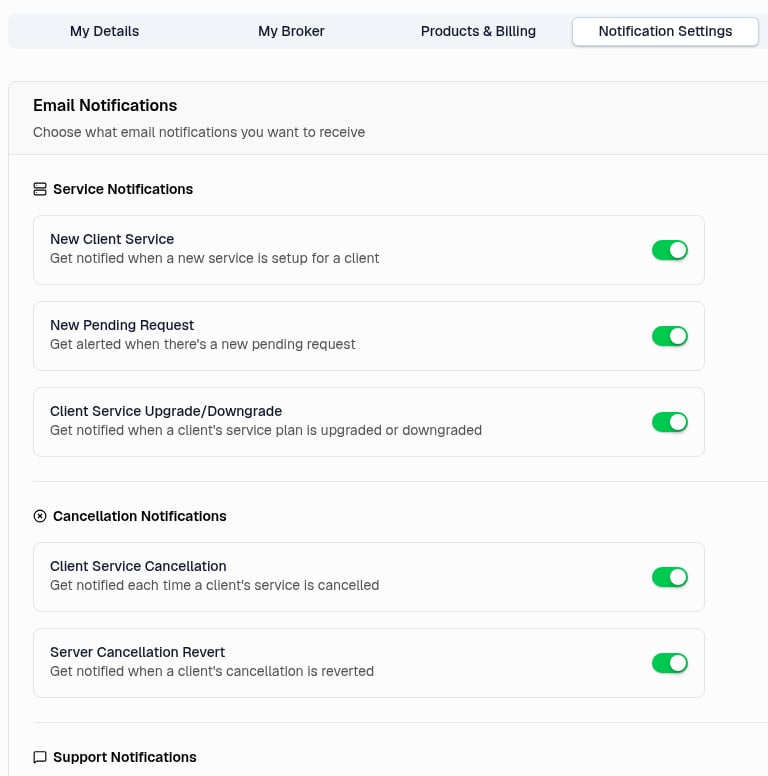
Email Notification Settings
1
Open Notification Settings
Select Notification Settings to control email notifications for your user account.
2
Choose Notifications
Turn on the notifications you need.
3
Save
Select Save Changes. The panel saves the controls for the signed-in user.
Next Step
Manage Your Team
Add team members and choose who is Admin or Staff.