

Who Can Do This
Publish a Form
- Direct Link
- Website Iframe
1
Choose the Language
On the builder success screen, select Display Language if the form has a saved translation.
2
Copy the Form URL
Use Direct Link to copy the Form URL. The open icon tests the URL in a new browser tab.
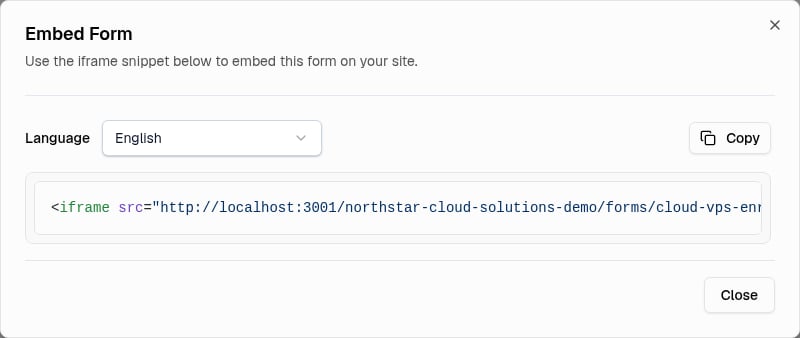
Embed Languages
Embed Languages
The Language list contains English and the form’s saved translations. The generated URL includes the selected language when it is not English.
Iframe Size
Iframe Size
The generated iframe fills the width of its container and is 500 pixels tall. Change those display values in your website code.
Allow an External Embed Domain
The allowed-domain list applies to every form for your broker. A form can always run in a same-origin iframe, but each external website origin must be added before that site can show the form. Admin only.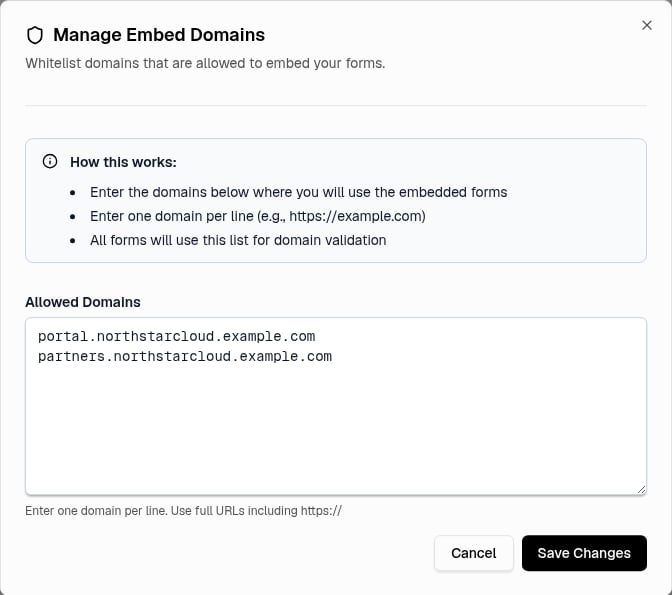
Manage Embed Domains
1
Open Form Settings
Select Form Settings in Form Center.
2
Open Manage Embed Domains
Select Manage Embed Domains.
3
Enter the Origins
Enter one origin per line in Allowed Domains. Use a full HTTPS origin.
4
Save
Select Save Changes.
Origin Format
Origin Format
The saved value keeps the protocol, host, and port when present, and the panel removes any path. This dialog accepts HTTP only for localhost.
One Entry per Origin
One Entry per Origin
Add every required origin separately, because a different protocol, subdomain, or port is a different origin. Clearing Allowed Domains stops external websites from framing your forms.
Set Trusted IPs
Public form submissions have a broker-wide rate limit: one source IP can send five form submissions in a 60-minute window for one broker. Further submissions are blocked until the window permits another. A trusted IP bypasses only this submission rate limit. It does not bypass form status checks, spam checks, or field validation. Admin only.1
Open Form Settings
Select Form Settings in Form Center.
2
Open Trusted IPs
Select Trusted IPs.
3
Enter the Addresses
Enter one IP address per line in Trusted IP Addresses.
4
Save
Select Save Changes.
Accepted Addresses
Accepted Addresses
The panel accepts individual IPv4 and IPv6 addresses only, not ranges or CIDR notation.
Disable the Bypass
Disable the Bypass
Clear the field and save to disable the bypass.
Review Submissions
1
Open the Submissions
Select Manage > View Submissions.
2
Review the Requests
The panel opens Requests with the form filter applied.
What Happens After a Submission
What Happens After a Submission
Each successful submission creates a New Service request with Form as its source. The visitor sees the configured success message and is redirected if the form has a redirect URL.The form’s Approval value decides what happens next:
Troubleshooting
Direct-Link or Embed Controls Are Not Available
Direct-Link or Embed Controls Are Not Available
The broker does not have a slug. Contact Support to configure it.
The Public Form Does Not Load
The Public Form Does Not Load
Confirm the row shows the Active status, then use Manage > Open Form to test the current URL. An incorrect broker slug, an incorrect form slug, or an inactive form returns a not-found page.
The Website Refuses to Show the Iframe
The Website Refuses to Show the Iframe
Open Form Settings > Manage Embed Domains and confirm Allowed Domains contains the exact parent website origin, including protocol, subdomain, and port. Save the change and reload the parent website. If the embed-domain lookup fails, the panel permits same-origin framing only.
An Entry Is Rejected
An Entry Is Rejected
Manage Embed Domains needs one full URL per line, HTTPS for an external website, and no path segments. Trusted IPs needs one individual IPv4 or IPv6 address per line, with no ranges, CIDR suffixes, or other text.
A Visitor Sees a Rate-Limit Message
A Visitor Sees a Rate-Limit Message
The source IP reached five submissions in the 60-minute window for this broker. Wait for the window to permit another submission, and use Trusted IPs only for a fixed source IP that you control.
A Submission Does Not Appear in Requests
A Submission Does Not Appear in Requests
Confirm the visitor saw the success message, then use Manage > View Submissions to apply the correct form filter. If submission still fails, test the public form and correct the field error it shows.
Next Step
Review Service Requests
Approve or reject the requests your forms create.