

Who Can Do This
Open the Services Page
1
Open Main Navigation
Open the Main Navigation section in the sidebar.
2
Go to Services
Select Services.
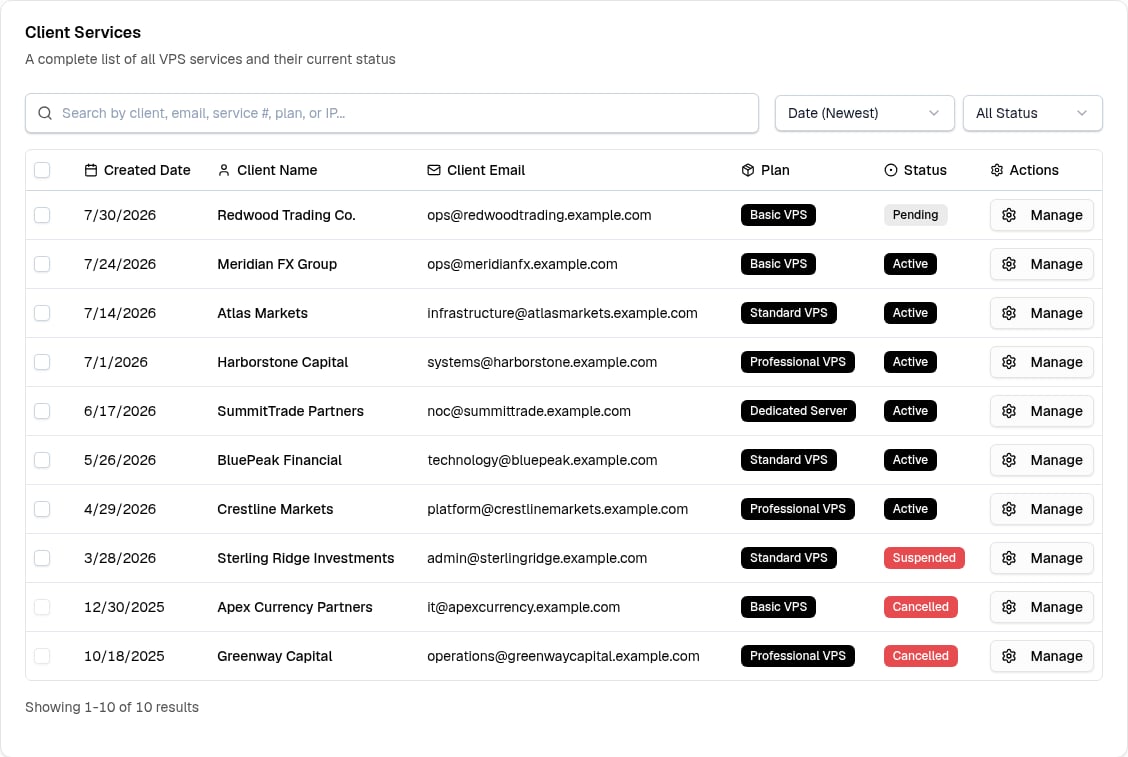
Client Services Table
Status Column
Status Column
A Status column appears only when you select All Status.
Find a Service
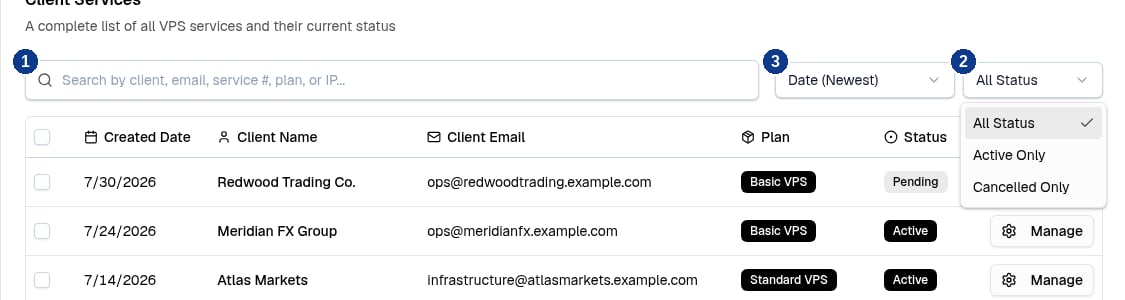
Search, Status Filter, and Sort Controls
1
Search
Type in the search field (callout 1). It matches client name, client email, plan, VPS IP address, or an exact service number.
2
Filter by Status
The status filter (callout 2) defaults to Active Only. Switch to Cancelled Only or All Status as needed.
3
Sort
Open the sort menu (callout 3) and select Date (Newest), Service # (High-Low), Date (Oldest), Name (A-Z), or Name (Z-A).
Results Page Resets
Results Page Resets
Any search, filter, or sort change returns you to the first results page.
Open a Service
1
Select Manage
Select Manage in a row to open the service detail page.
Select Services
1
Select Rows
Select the checkbox on each service you need. The header checkbox selects all non-cancelled services on the current page.
2
Cancel or Clear
Select Cancel Selected to open the bulk cancellation dialog. Select Clear Selected to remove the current selections.
Cancelled Services Cannot Be Selected
Cancelled Services Cannot Be Selected
Only non-cancelled rows have a selection checkbox. A cancelled service cannot be selected.
Create or Export
The page header has two actions:- Export opens the Clients & Services Report dialog.
- Create Service opens the Create New VPS form.
Details
Setup in Progress
Setup in Progress
The table shows Pending for a service that is still being set up. The service detail page gives more setup information:
- A pending VPS shows Setup In Progress with no connection details yet.
- A pending Dedicated Server shows a notice stating that the service will be automatically delivered to the client within 24 business hours.
Next Step
Manage One Service
Connect to a service, control it, and change or cancel it.