

Who Can Do This
Invoices are Admin-only. A Staff user who opens this page or an invoice detail page is sent to the unauthorized page.
View Invoices
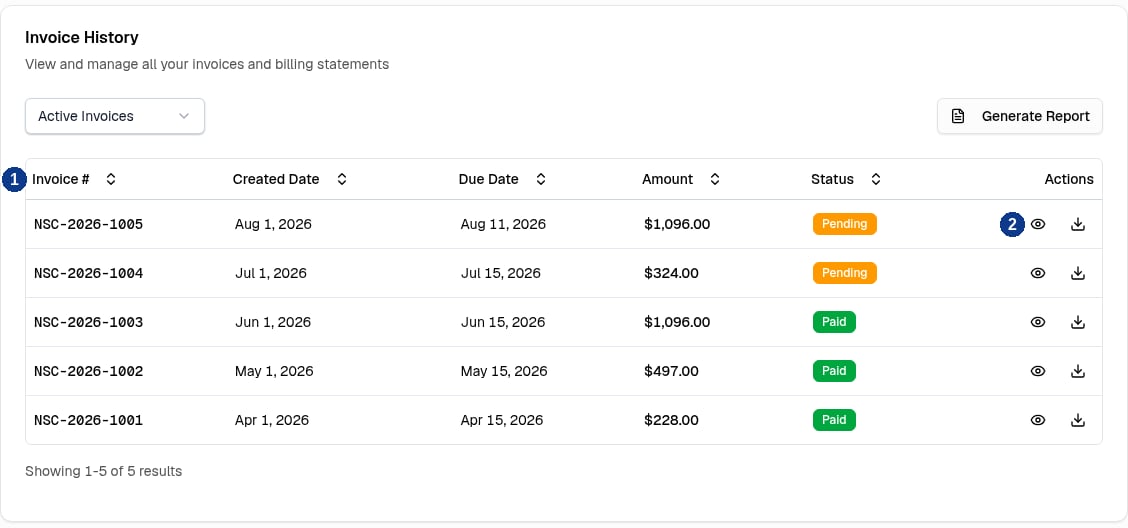
Invoice History Table
1
Go to Billing & Invoices
Select Billing in the sidebar. The Billing & Invoices page opens.
2
Sort the List
Select a column heading (callout 1) to sort ascending or descending.
3
Open an Invoice
Select View Details (callout 2) in Actions. The detail page shows the invoice number in the title.
4
Go Back
Use the back control beside the title to return to Billing & Invoices.
How Sorting Works
How Sorting Works
Sorting applies to the complete invoice history before the API returns each page.
When an Invoice Does Not Open
When an Invoice Does Not Open
An invoice does not open if it is a draft, belongs to another broker account, or does not exist.Draft invoices are not available on the list, detail page, PDF action, or email action.
What the Invoice Detail Page Shows
What the Invoice Detail Page Shows
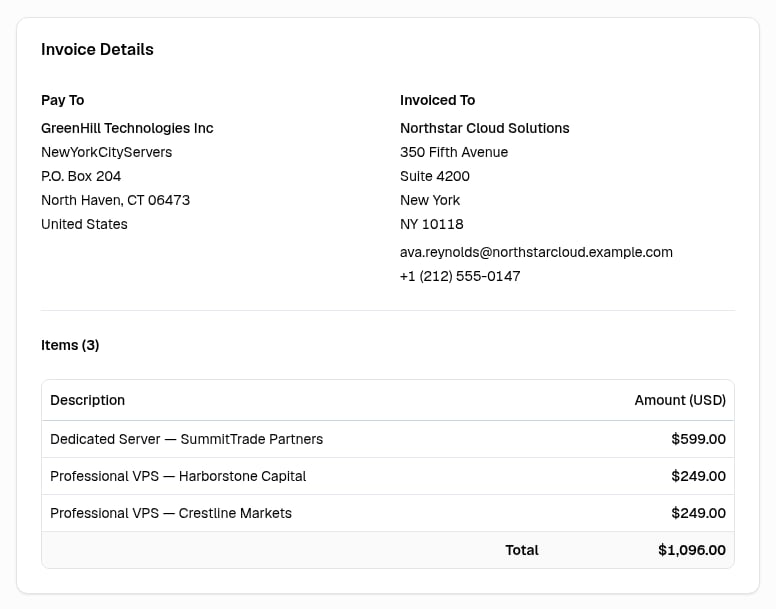
Invoice Details With Line Items
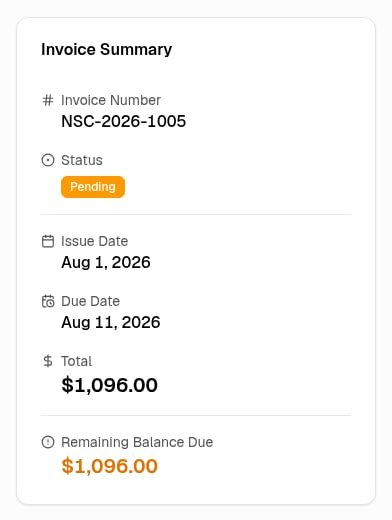
Invoice Summary
Payment History Fields
Payment History Fields
Payment History appears when the invoice has at least one payment record.
Pay a Pending Card Invoice
Pay Now appears only when all of these apply:- Your broker account uses card billing.
- The invoice status is Pending.
- The invoice has an amount due.

Invoice Header With Pay Now
1
Open the Invoice
Open the pending invoice from Invoice History.
2
Select Pay Now
Select Pay Now. The payment uses the default payment method for the broker account.
3
Wait for the Result
A successful payment shows Payment successful and refreshes the invoice data.
If the Payment Fails
If the Payment Fails
The page shows Payment failed and an error description. For example, payment cannot start when no payment method is on file or when another charge for the invoice is in progress.
Automatic Charge Notice
Automatic Charge Notice
If a default card is available for a pending invoice, a notice states that the card will be charged automatically on the due date. The notice identifies the card by its last four digits.
Pay by Bank Wire
Pay Now is not available when the broker account uses Bank Wire Transfer.1
Open the Invoice
Open a pending invoice with an amount due. The page directs you to Wire Instructions.
2
Review Wire Instructions
Wire Instructions shows the receiving bank and account details that are available for that invoice, an Invoice Memo, and any additional instructions.
3
Send the Wire
Send payment with the Invoice Memo included exactly as shown.
Download an Invoice PDF
1
Select Download
Select Download Invoice in the Invoice History row, or Download PDF on the invoice detail page.
2
Save the File
The browser downloads
invoice-[invoice number].pdf.What the PDF Contains
What the PDF Contains
The PDF contains the invoice addresses, dates, status, line items, total, applicable balance due, available payment history, and available notes. A pending bank wire invoice includes available wire instructions.
If the Download Fails
If the Download Fails
If the detail-page download fails, the page shows Failed to download invoice.
Email an Invoice PDF
1
Open the Invoice
Open the invoice.
2
Select Email PDF
Select Email PDF and wait for Invoice sent successfully.
Email PDF sends the message to the email address of the signed-in Admin user, not to the client. The PDF is attached as
invoice-[invoice number].pdf.If the Email Fails
If the Email Fails
If the email cannot be sent, the page shows Failed to send email and an error description.
Next Step
Manage Payment Methods
Add cards, choose the default card, and learn how Autopay works.