

Who Can Do This
Every Admin and Staff user signs in the same way.Sign In
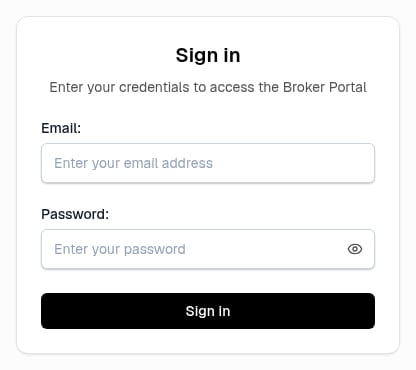
Sign-In Form
1
Open the Sign-In Page
Open the Broker Panel sign-in page.
2
Enter Your Email
Enter your email address in Email:.
3
Enter Your Password
Enter your password in Password:.
4
Sign In
Select Sign in.
Set Up Two-Factor Authentication
Before you start, make sure that:- You are signed in to the Broker Panel.
- You have an authenticator app that can scan a QR code.
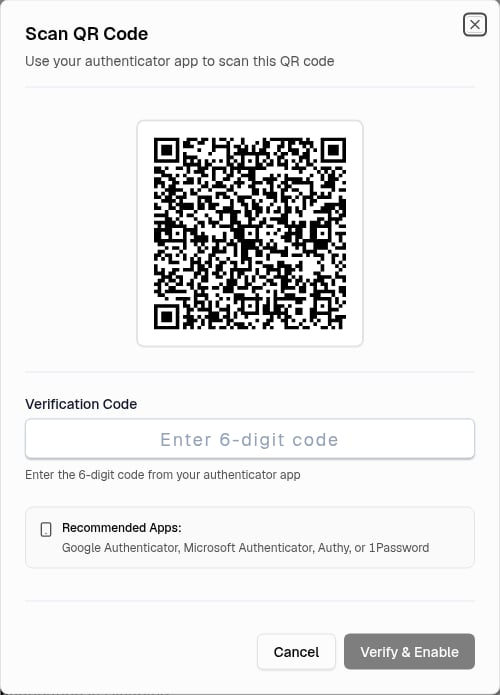
Two-Factor Setup Dialog
1
Open Account Settings
Open the user menu in the upper-right corner. Select Account Settings.
2
Open Login & Security
Select the Login & Security tab. Find Two-Factor Authentication.
3
Enable 2FA
Select Enable 2FA.
4
Scan the QR Code
Scan the QR code with your authenticator app.
5
Verify the Code
Enter the six-digit code from the app in Verification Code. Select Verify & Enable.
If You Cancel Before Verification
If You Cancel Before Verification
If you cancel before verification, the panel does not enable two-factor authentication.
Save Your Backup Codes
The panel creates 10 backup codes when you enable two-factor authentication. It shows these codes one time.1
Copy or Download the Codes
Select Copy All to copy the codes, or select Download to save a text file.
2
Store the Codes
Store the codes in a secure location.
3
Confirm
Select I’ve Saved My Codes.
Recover Access with a Backup Code
Use this procedure if you cannot get a code from your authenticator app.1
Sign In
Enter your email address and password on the sign-in page. Select Sign in.
2
Switch to Backup Code
Select Use Backup Code Instead on the Two-Factor Authentication screen.
3
Enter a Backup Code
Enter one saved code in Backup Code. Select Verify Backup Code.
Go Back to the Authenticator Code
Go Back to the Authenticator Code
Select Back to Authenticator Code if you can use your authenticator app instead.
No Other Self-Service Recovery
No Other Self-Service Recovery
The sign-in page has no other self-service recovery option. You must have your email address, password, and either an authenticator code or a saved backup code when two-factor authentication is enabled.
Disable Two-Factor Authentication
1
Open Account Settings
Open the user menu in the upper-right corner. Select Account Settings.
2
Open Login & Security
Select the Login & Security tab. Find Two-Factor Authentication.
3
Start Disabling
Select Disable 2FA.
4
Confirm with a Code
Enter the current six-digit authenticator code in Verification Code. Select Disable 2FA.
Sign Out
1
Open the User Menu
Open the user menu in the upper-right corner.
2
Log Out
Select Log out.
Next Step
Manage Your Team
Add team members and choose who is Admin or Staff.