

Who Can Do This
This page is Admin only. Select Email Templates under Account in the sidebar.
Review the Template List
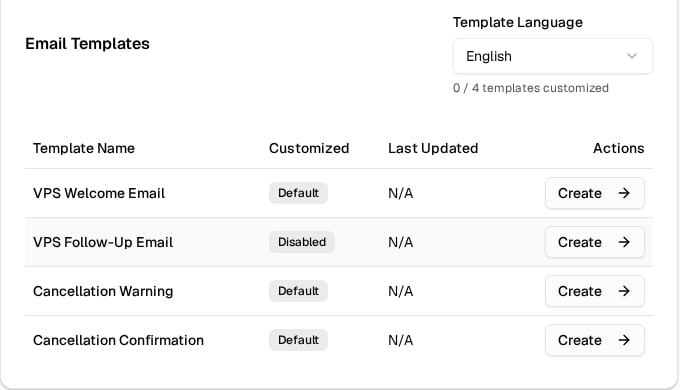
Email Templates List
Customized and Last Updated Columns
Customized and Last Updated Columns
Last Updated shows N/A until a custom template exists.
Create or Edit a Template
1
Open the Editor
Select a value in Template Language, find the template type, and select Create. For an existing Custom template, select Manage > Edit.
2
Write the Subject and Body
Enter the subject in Email Subject (200 characters maximum) and the message HTML in Email Body. The HTML Code Editor toolbar adds bold text, italic text, paragraphs, headings, lists, and links.
3
Optional: Load a Starter Template
Load Starter Template loads a subject and HTML for the selected type. It replaces the current content and asks for confirmation when content already exists.
4
Add Variables
Open Available Variables, select the copy control for a variable, and paste it into the subject or HTML. See supported variables.
5
Preview and Test
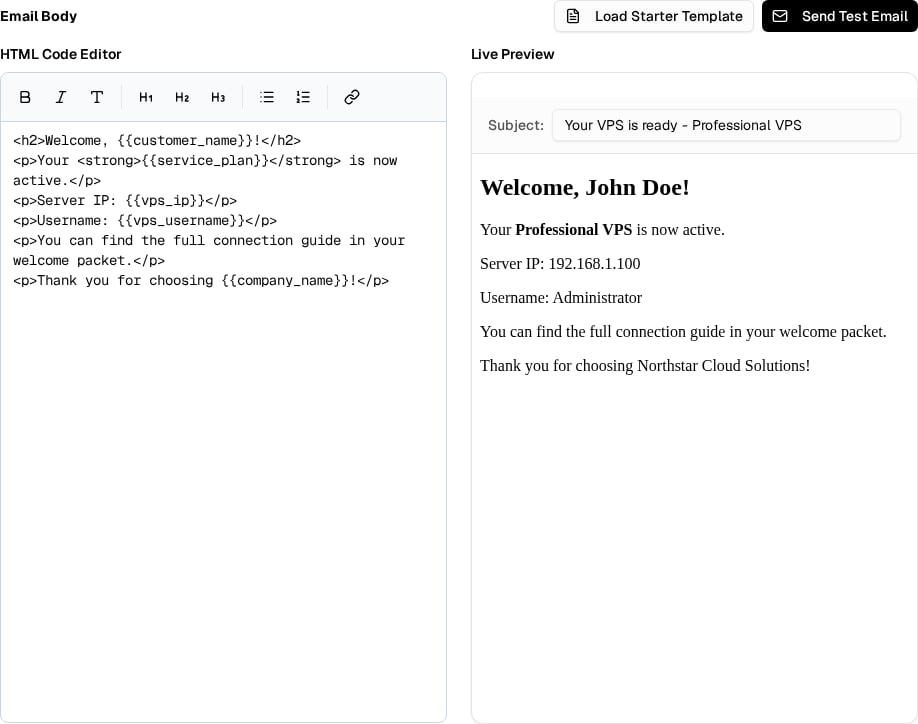
Email Editor and Live Preview
6
Save
Select Save Template. A successful save stores and activates the template. It does not send a message.
Live Preview
Live Preview
Live Preview updates as you type. It uses sample values for the template type and your broker company name for
{{company_name}}. It never uses live client data and removes unsafe browser content. It can differ from the final result in an email client.Test Emails
Test Emails
The test subject includes a test label. Send Test Email in the editor tests the current draft. Manage > Send Test Email in the list tests the saved version instead.
Unsaved Changes
Unsaved Changes
A dot next to the page title marks unsaved changes. Cancel asks for confirmation when the editor has unsaved changes. The browser warns you before you leave or reload the page.
Save Errors
Save Errors
Set the Follow-Up Delay
The VPS Follow-Up Email delay needs two saves.1
Open Settings
In the VPS Follow-Up Email editor, select Settings.
2
Enter the Delay
Enter a value from 1 through 90 in Send Follow-up After.
3
Save the Settings
Select Save Settings. This closes the dialog and keeps the delay in the editor.
4
Save the Template
Select Save Template to store the delay with the template.
Supported Variables
Variables use double braces, such as{{customer_name}}. Keep the spelling and underscores unchanged. The panel replaces supported variables when it builds a preview or message, and leaves an unsupported name unchanged.
Available to Every Template Type
Available to Every Template Type
{{customer_name}}, {{service_plan}}, {{company_name}}, {{vps_ip}}VPS Welcome Email
VPS Welcome Email
Client and server details:
{{customer_email}}, {{vps_username}}, {{vps_password}}, {{cpu}}, {{ram}}, {{storage}}, {{os}}, {{location}}VPS Follow-Up Email
VPS Follow-Up Email
{{customer_email}}, {{days_since_setup}}Cancellation Warning
Cancellation Warning
Dates and reason:
{{warning_date}}, {{cancellation_date}}, {{warning_reason}}Cancellation Confirmation
Cancellation Confirmation
Date:
{{cancellation_date}}Reasons: {{cancellation_reason}}, {{cancellation_reason_nonpayment}}, {{cancellation_reason_volume}}, {{cancellation_reason_balance}}Safety Rules
- Use only variables from Available Variables.
- Review every link and all text that a starter template adds.
- Use Send Test Email before you depend on a new layout.
Email Client Compatibility Warnings
Email Client Compatibility Warnings
The editor warns about HTML or CSS that some email clients do not support, such as flexbox, grids, external style sheets, web fonts, background images, and insecure image URLs. A warning does not block the save, so review each one before you use the template.
Next Step
Build a Service Request Form
Let clients request a VPS through a public form.