

Who Can Do This
Payment method management is Admin-only. A Staff user is sent to the unauthorized page.
Before You Change a Payment Method
- Your broker account uses one billing method.
- Credit Card accounts use the Default card for automatic billing. A pending invoice shows the card and scheduled charge date when automatic billing applies.
- Bank Wire Transfer accounts settle invoices manually.
- The first saved card becomes the Default card, even if you clear Set as default payment method.
- You cannot remove the current Default card. Set another saved card as the default first.
Add a Credit Card
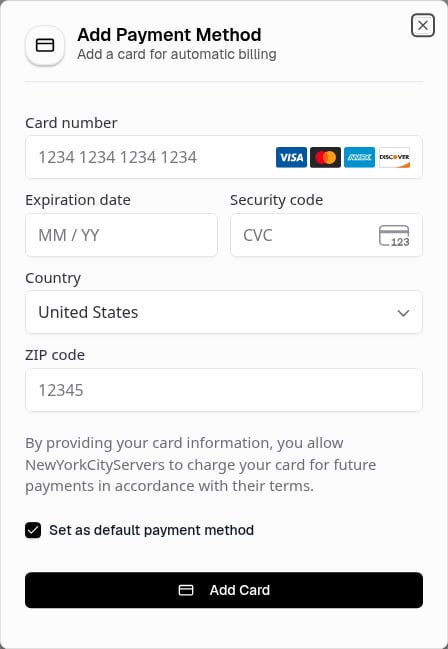
Add Payment Method Form
1
Open the Card Form
Open Billing, select Manage Payment Methods, then select Add Payment Method if no card is saved, or Add Card if one already is.
2
Enter the Card Details
Enter the card details in Add Payment Method and complete card verification if the secure card form requests it.
3
Save
Select or clear Set as default payment method, then select Add Card.
If Setup Does Not Finish
If Setup Does Not Finish
The panel shows Payment setup was not completed and the card is not added. If card verification opens, complete it before you submit the form again.
Choose the Default Card

Saved Card With the Default Indicator
1
Open Payment Methods
Open Payment Methods and find the saved card.
2
Select Set Default
Select Set Default. The card then shows Default and the panel shows Default payment method updated.
Replace or Remove a Card
The page has no action to edit card details. Add a replacement card when card details change or when a card shows Expired.1
Add the Replacement Card
Add the replacement card.
2
Make It the Default
Select Set Default on the replacement if it does not already show Default.
3
Select the Trash Icon
Select the trash icon for the old card.
4
Confirm Removal
Review the card in Remove Payment Method, then select Remove.
Removing the Default Card
Removing the Default Card
If you select the trash icon for the default card, the panel shows Cannot remove default payment method. Set another card as the default first.
Autopay

Active Autopay Banner
- Your account uses Card billing. Bank Wire Transfer accounts do not use Autopay.
- The invoice has a Pending status and an amount due.
- The invoice is set for automatic charge.
- You have a default payment method.
If an Automatic Charge Fails
The invoice stays Pending when the charge does not complete.1
Review the Invoice
Open the invoice and review Payment History.
2
Fix the Card
Add a valid card if necessary and set it as Default.
3
Pay the Invoice
Open the Pending invoice and select Pay Now.
Payment Emails
Payment Emails
If Payment Alerts is on in your notification settings, you receive an email when a payment succeeds or fails.
Pay by Bank Wire
Each eligible invoice provides its own receiving details and Invoice Memo.1
Open the Invoice
Open Billing, then open the unpaid invoice.
2
Review Wire Instructions
Review Wire Instructions. Use the receiving details shown on that invoice.
3
Include the Memo
Include the Invoice Memo exactly as shown.
Next Step
Brand Your Portal
Set your brand colors and manage your image assets.