> ## Documentation Index
> Fetch the complete documentation index at: https://broker-docs.newyorkcityservers.com/llms.txt
> Use this file to discover all available pages before exploring further.
# Service Details
> Open a client service, review its status and details, protect its credentials, and choose the next action.
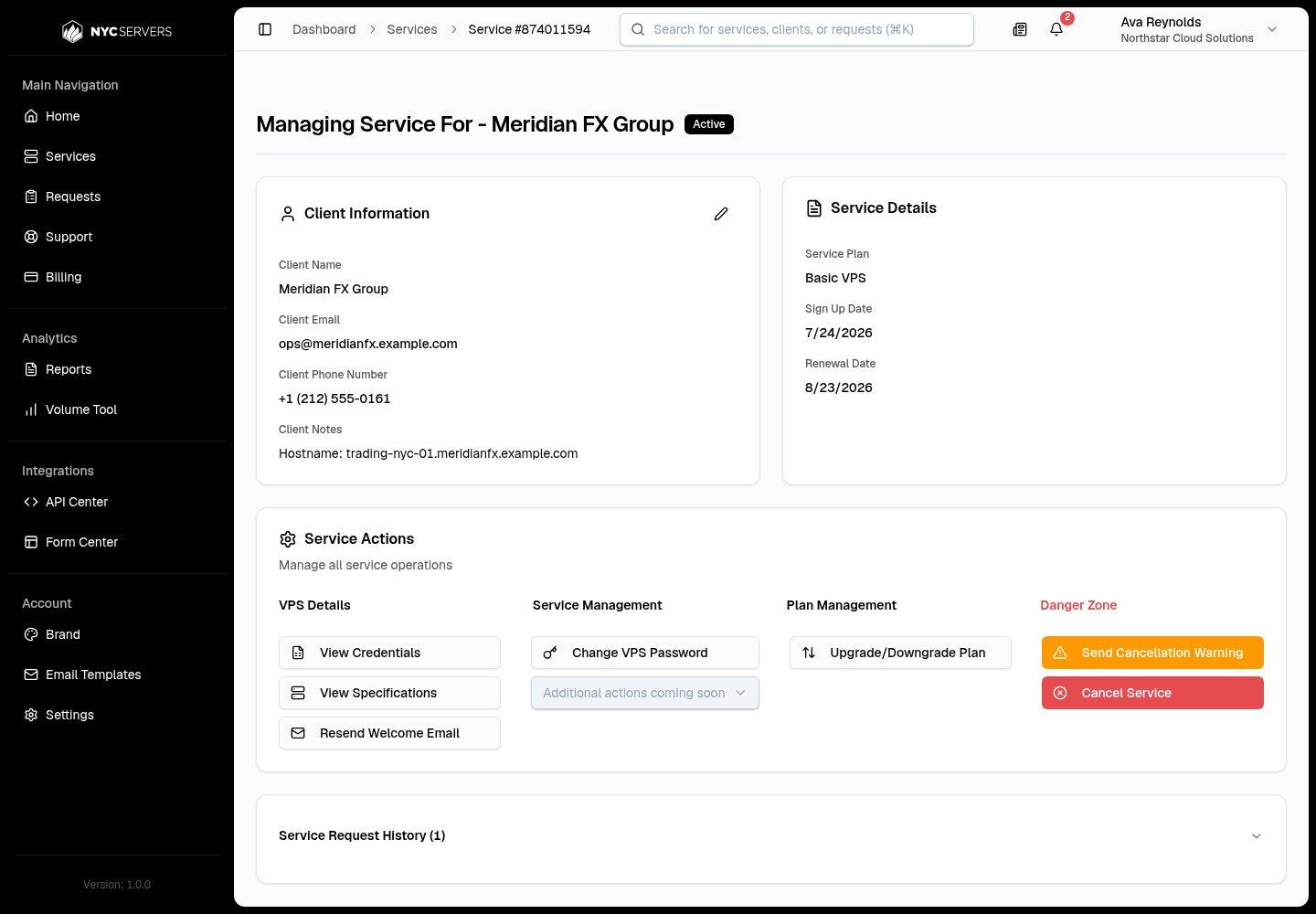
The service detail page shows one client service. It contains the service status, client information, service details, actions, and request history.
## Open A Service
 1. Select **Services** in the sidebar.
2. Find the service in **Client Services**.
3. Select **Manage** for that service.
You can search by client, email, service number, plan, or IP address before you select **Manage**.
The page title identifies the client. A badge beside the title shows the current service status.
## Understand The Service Status
| Status | What the page shows |
| --------------------- | ------------------------------------------------------------------------------------------------------------------------------------------------- |
| **Active** | The service is active. |
| **Setup In Progress** | Setup is not complete for a pending VPS service. Credentials are not available during this state. |
| **Pending** | A dedicated server is pending. The **Setup In Progress** notice states that the service will be delivered to the client within 24 business hours. |
| **Suspended** | The service has the **Suspended** status. |
| **Cancelled** | The service is cancelled. Resend, password, plan, warning, and cancellation actions are not available. |
A cancelled service can show **Cancellation Grace Period Active** for up to seven days after cancellation. The notice shows the cancellation date and the remaining days. Select **Revert Cancellation** to request reactivation.
## Review Service Details
**Service Details** shows:
* **Service Plan**: The current plan.
* **Sign Up Date**: The service creation date.
* **Renewal Date**: The next billing date. The value is **N/A** when no date is available.
Select **View Specifications** in **Service Actions** to open **Service Specifications**. The dialog shows **Plan Name**, **CPU Cores**, **RAM**, **Storage**, **Location**, and **Operating System**.
Select **Upgrade Service** in this dialog to open **Change Service Plan**.
## Review Client Information
**Client Information** always shows **Client Name** and **Client Email**. It also shows available trading account numbers, phone number, and client notes.
The edit control lets you change these values. Separate multiple trading account numbers with commas. Save the changes to update the service.
## View VPS Credentials
1. Select **Services** in the sidebar.
2. Find the service in **Client Services**.
3. Select **Manage** for that service.
You can search by client, email, service number, plan, or IP address before you select **Manage**.
The page title identifies the client. A badge beside the title shows the current service status.
## Understand The Service Status
| Status | What the page shows |
| --------------------- | ------------------------------------------------------------------------------------------------------------------------------------------------- |
| **Active** | The service is active. |
| **Setup In Progress** | Setup is not complete for a pending VPS service. Credentials are not available during this state. |
| **Pending** | A dedicated server is pending. The **Setup In Progress** notice states that the service will be delivered to the client within 24 business hours. |
| **Suspended** | The service has the **Suspended** status. |
| **Cancelled** | The service is cancelled. Resend, password, plan, warning, and cancellation actions are not available. |
A cancelled service can show **Cancellation Grace Period Active** for up to seven days after cancellation. The notice shows the cancellation date and the remaining days. Select **Revert Cancellation** to request reactivation.
## Review Service Details
**Service Details** shows:
* **Service Plan**: The current plan.
* **Sign Up Date**: The service creation date.
* **Renewal Date**: The next billing date. The value is **N/A** when no date is available.
Select **View Specifications** in **Service Actions** to open **Service Specifications**. The dialog shows **Plan Name**, **CPU Cores**, **RAM**, **Storage**, **Location**, and **Operating System**.
Select **Upgrade Service** in this dialog to open **Change Service Plan**.
## Review Client Information
**Client Information** always shows **Client Name** and **Client Email**. It also shows available trading account numbers, phone number, and client notes.
The edit control lets you change these values. Separate multiple trading account numbers with commas. Save the changes to update the service.
## View VPS Credentials
 1. Find **Service Actions**.
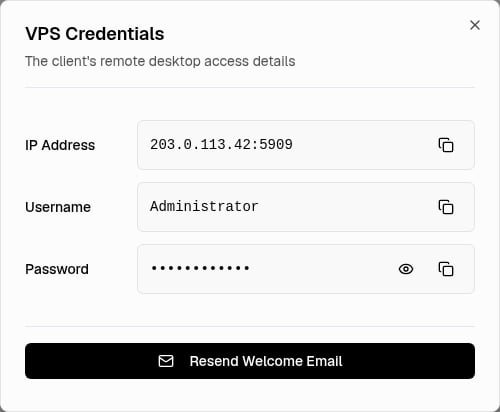
2. Select **View Credentials**.
3. Wait for **VPS Credentials** to open.
4. Review **IP Address**, **Username**, and **Password**.
Select **Resend Welcome Email** to send the VPS credentials and setup information to the client email address. Confirm this action in the next dialog.
## Review Request And Setup States
Select **Service Request History** to expand the request list. The number in the title is the total number of requests for this service.
Each row shows the date, request ID, type, status, and **View** action. Request IDs use the `REQ-000000` format.
Request types can include **New Service**, **Upgrade**, **Downgrade**, **Cancellation**, **Cancellation Warning**, **Revert**, and **Welcome Email**.
| Request status | Meaning on this page |
| -------------- | ---------------------------------------------------- |
| **Pending** | The request is waiting for a decision or processing. |
| **Approved** | The request was approved or completed. |
| **Denied** | The request was denied. |
Select **View** to open **Request Details**. This sheet can show the request source, client, plan, notes, dates, and processing information.
## Choose The Next Action
1. Find **Service Actions**.
2. Select **View Credentials**.
3. Wait for **VPS Credentials** to open.
4. Review **IP Address**, **Username**, and **Password**.
Select **Resend Welcome Email** to send the VPS credentials and setup information to the client email address. Confirm this action in the next dialog.
## Review Request And Setup States
Select **Service Request History** to expand the request list. The number in the title is the total number of requests for this service.
Each row shows the date, request ID, type, status, and **View** action. Request IDs use the `REQ-000000` format.
Request types can include **New Service**, **Upgrade**, **Downgrade**, **Cancellation**, **Cancellation Warning**, **Revert**, and **Welcome Email**.
| Request status | Meaning on this page |
| -------------- | ---------------------------------------------------- |
| **Pending** | The request is waiting for a decision or processing. |
| **Approved** | The request was approved or completed. |
| **Denied** | The request was denied. |
Select **View** to open **Request Details**. This sheet can show the request source, client, plan, notes, dates, and processing information.
## Choose The Next Action
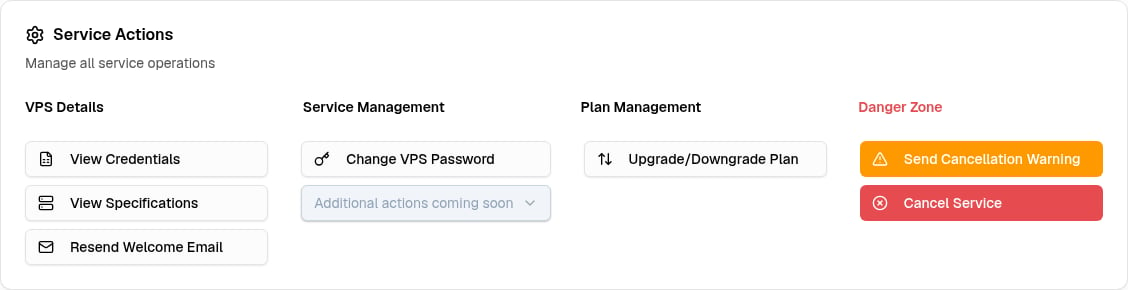 | Action | What it does | Access and limits |
| ----------------------------- | ------------------------------------------------------------------------------------------------------- | ------------------------------------------------------ |
| **View Credentials** | Opens the remote desktop access details. | Admin and Staff. Not available while setup is pending. |
| **View Specifications** | Opens the plan and hardware details. | Admin and Staff. |
| **Resend Welcome Email** | Sends credentials and setup information to the client. | Admin only. |
| **Change VPS Password** | Sets or generates a new password. | Admin only. Not shown for a Dedicated Server. |
| **Upgrade/Downgrade Plan** | Opens the plan selection dialog. See [plan changes](/broker/services/plan-changes). | Admin and Staff. |
| **Send Cancellation Warning** | Emails your reason to the client. See [cancellations](/broker/services/cancellations). | Admin only. |
| **Cancel Service** | Opens the cancellation form and requires a reason. See [cancellations](/broker/services/cancellations). | Admin only. |
**Change VPS Password** can also send the new credentials to the client when you select **Email New Credentials To Client**. The password must contain 8 to 32 characters. It must include one uppercase letter, one lowercase letter, and one number. It cannot have leading or trailing spaces.
Cancelled and terminated services lock actions that can change the service. **View Credentials** and **View Specifications** stay available. The locked controls show this message: “This service is cancelled. Lifecycle actions are no longer available.”
The Broker Panel does not provide power controls or an operating-system reinstall action. **View Specifications** shows the current Operating System value, but it cannot change that value.
| Action | What it does | Access and limits |
| ----------------------------- | ------------------------------------------------------------------------------------------------------- | ------------------------------------------------------ |
| **View Credentials** | Opens the remote desktop access details. | Admin and Staff. Not available while setup is pending. |
| **View Specifications** | Opens the plan and hardware details. | Admin and Staff. |
| **Resend Welcome Email** | Sends credentials and setup information to the client. | Admin only. |
| **Change VPS Password** | Sets or generates a new password. | Admin only. Not shown for a Dedicated Server. |
| **Upgrade/Downgrade Plan** | Opens the plan selection dialog. See [plan changes](/broker/services/plan-changes). | Admin and Staff. |
| **Send Cancellation Warning** | Emails your reason to the client. See [cancellations](/broker/services/cancellations). | Admin only. |
| **Cancel Service** | Opens the cancellation form and requires a reason. See [cancellations](/broker/services/cancellations). | Admin only. |
**Change VPS Password** can also send the new credentials to the client when you select **Email New Credentials To Client**. The password must contain 8 to 32 characters. It must include one uppercase letter, one lowercase letter, and one number. It cannot have leading or trailing spaces.
Cancelled and terminated services lock actions that can change the service. **View Credentials** and **View Specifications** stay available. The locked controls show this message: “This service is cancelled. Lifecycle actions are no longer available.”
The Broker Panel does not provide power controls or an operating-system reinstall action. **View Specifications** shows the current Operating System value, but it cannot change that value.