> ## Documentation Index
> Fetch the complete documentation index at: https://broker-docs.newyorkcityservers.com/llms.txt
> Use this file to discover all available pages before exploring further.
# Roles & Team Management
> Understand broker admin and staff permissions, and manage team member accounts.
The Broker Panel has two roles: Admin and Staff. Each team member has one role.
## Role Permissions
### Admin
An Admin has the following permissions:
* Manage team member accounts and roles.
* Manage broker settings, API keys, forms, brand assets, email settings, email templates, and scheduled reports.
* Perform restricted service actions, such as service cancellation and welcome email resend.
* Approve or deny pending service requests.
Only an Admin can open **Team Management**. The panel also checks the Admin role when it processes each team management action.
### Staff
A Staff member can manage their own profile, notifications, password, and login security. A Staff member can approve or deny pending service requests.
A Staff member cannot open **Team Management**. A Staff member cannot add, edit, remove, or change the role of a team member.
## Team Management Constraints
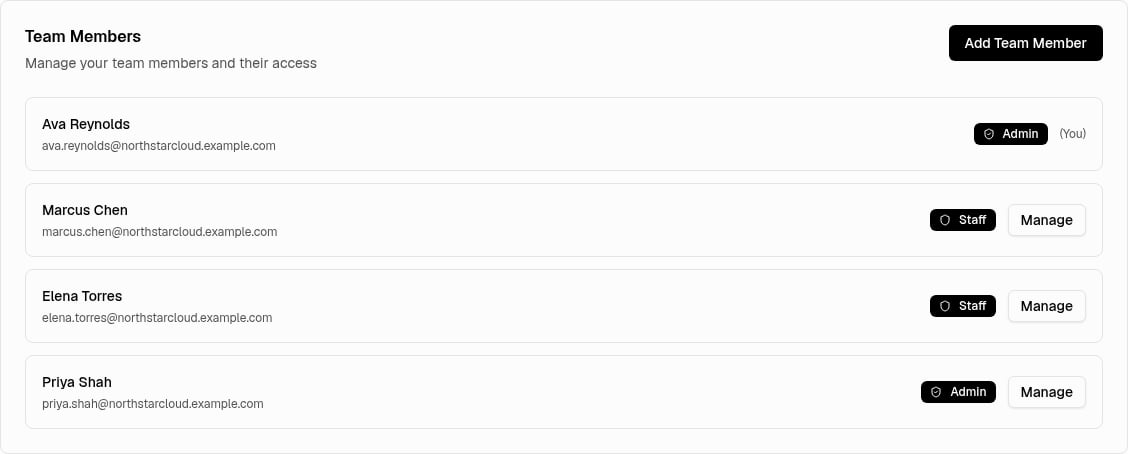 The following account protections apply to Admin users:
* You cannot remove your own account.
* You cannot change your own role from Admin to Staff.
* At least one Admin must remain on the team.
* You can manage only members of your broker organization.
The following account requirements apply:
* A password must contain at least 6 characters.
* Each account must use an email address that is not already in use.
Your own team row has the **(You)** label. It does not have the **Manage** button. Use **My Details** to change your own name or email address.
## Add A Team Member
Adding a team member creates an active account. It does not send an invitation. You set the initial password during account creation.
You must have the Admin role.
### Open The Account Form
The following account protections apply to Admin users:
* You cannot remove your own account.
* You cannot change your own role from Admin to Staff.
* At least one Admin must remain on the team.
* You can manage only members of your broker organization.
The following account requirements apply:
* A password must contain at least 6 characters.
* Each account must use an email address that is not already in use.
Your own team row has the **(You)** label. It does not have the **Manage** button. Use **My Details** to change your own name or email address.
## Add A Team Member
Adding a team member creates an active account. It does not send an invitation. You set the initial password during account creation.
You must have the Admin role.
### Open The Account Form
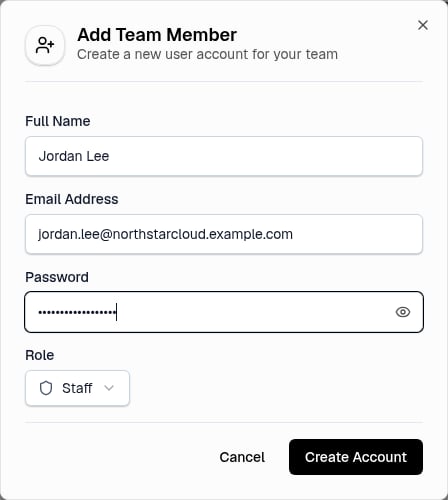 1. Open **Account Settings**.
2. Select **Team Management**.
3. Select **Add Team Member**.
### Create The Account
1. Enter the member's **Full Name**.
2. Enter the member's **Email Address**.
3. Enter an initial **Password**.
4. Select **Staff** or **Admin** in **Role**.
5. Select **Create Account**.
The default role is Staff.
## Edit A Team Member
You must have the Admin role. You cannot edit your own account from **Team Management**.
### Open The Member Details
1. Open **Account Settings**.
2. Select **Team Management**.
3. Find the team member.
4. Select **Manage**.
5. Select **Edit Details**.
### Save The Changes
1. Change the required fields.
2. Leave **Change User Password** empty to keep the current password.
3. Select **Update Member**.
## Change A Member's Role
You must have the Admin role. You cannot demote yourself. At least one Admin must remain.
### Open The Role Menu
1. Open **Account Settings**.
2. Select **Team Management**.
3. Find the team member.
4. Select **Manage**.
5. Select **Change Role**.
### Select The New Role
1. Select **Upgrade to Admin** or **Downgrade to Staff**.
The panel applies the new role immediately.
## Remove A Team Member
You must have the Admin role. You cannot remove yourself.
Removing a member revokes that member's access to the Broker Panel. The panel states that this action cannot be undone.
### Open The Removal Confirmation
1. Open **Account Settings**.
2. Select **Team Management**.
3. Find the team member.
4. Select **Manage**.
5. Select **Remove from Team**.
### Confirm The Removal
1. Review the confirmation message.
2. Select **Remove Member**.
1. Open **Account Settings**.
2. Select **Team Management**.
3. Select **Add Team Member**.
### Create The Account
1. Enter the member's **Full Name**.
2. Enter the member's **Email Address**.
3. Enter an initial **Password**.
4. Select **Staff** or **Admin** in **Role**.
5. Select **Create Account**.
The default role is Staff.
## Edit A Team Member
You must have the Admin role. You cannot edit your own account from **Team Management**.
### Open The Member Details
1. Open **Account Settings**.
2. Select **Team Management**.
3. Find the team member.
4. Select **Manage**.
5. Select **Edit Details**.
### Save The Changes
1. Change the required fields.
2. Leave **Change User Password** empty to keep the current password.
3. Select **Update Member**.
## Change A Member's Role
You must have the Admin role. You cannot demote yourself. At least one Admin must remain.
### Open The Role Menu
1. Open **Account Settings**.
2. Select **Team Management**.
3. Find the team member.
4. Select **Manage**.
5. Select **Change Role**.
### Select The New Role
1. Select **Upgrade to Admin** or **Downgrade to Staff**.
The panel applies the new role immediately.
## Remove A Team Member
You must have the Admin role. You cannot remove yourself.
Removing a member revokes that member's access to the Broker Panel. The panel states that this action cannot be undone.
### Open The Removal Confirmation
1. Open **Account Settings**.
2. Select **Team Management**.
3. Find the team member.
4. Select **Manage**.
5. Select **Remove from Team**.
### Confirm The Removal
1. Review the confirmation message.
2. Select **Remove Member**.