> ## Documentation Index
> Fetch the complete documentation index at: https://broker-docs.newyorkcityservers.com/llms.txt
> Use this file to discover all available pages before exploring further.
# API Logs
> Review broker API request history and use log details to investigate failed requests safely.
API Logs records API requests for your broker. Use it to find a request, check its result, and review the available request and response data.
## Access And Roles
Only broker admins can open API Logs. Staff accounts do not have access.
1. Sign in with a broker admin account.
2. Open **API Center** under **Integrations** in the sidebar.
3. Select **View Logs** on the **API Logs** card.
## Request Logs Table
 Each row shows the timestamp (UTC), HTTP method, endpoint, response status, **Mode** (**Live**, **Test**, or **Unknown**), source IP address when available, and the **View Log** action.
The controls above the table filter by **Date Range** (default **Last 24 hours**), **Status** class (2xx/4xx/5xx), **Method**, and **Mode** (Live or Sandbox). The search field matches the **Endpoint** field only. Filters work together, and a filter change returns the table to page 1.
## Open Log Details
Each row shows the timestamp (UTC), HTTP method, endpoint, response status, **Mode** (**Live**, **Test**, or **Unknown**), source IP address when available, and the **View Log** action.
The controls above the table filter by **Date Range** (default **Last 24 hours**), **Status** class (2xx/4xx/5xx), **Method**, and **Mode** (Live or Sandbox). The search field matches the **Endpoint** field only. Filters work together, and a filter change returns the table to page 1.
## Open Log Details
 1. Find the request in the **Request Logs** table.
2. Select **View Log**.
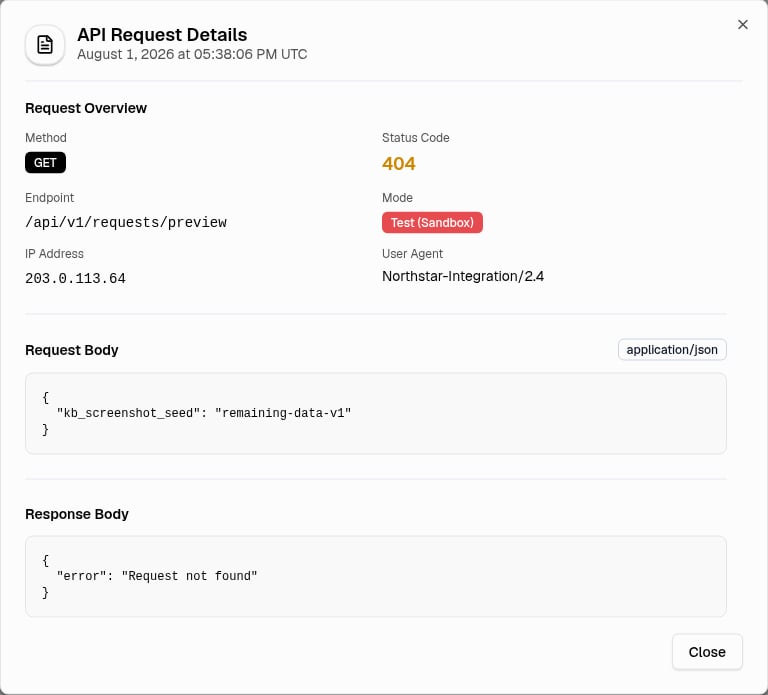
The **API Request Details** dialog shows the full timestamp and a **Request Overview**. The overview includes **Method**, **Status Code**, **Endpoint**, **Mode**, **IP Address**, and **User Agent**.
The dialog can also show these sections:
* **Request Body** shows captured request data. For `GET` and `DELETE` requests, this section can show query parameters instead of a body.
* A content type badge can appear beside **Request Body**.
* A **Truncated** badge means the logger stored only part of a large request body.
* **Response Body** shows a captured JSON response. A non-JSON response can appear as **No response body**.
## Debug A Failed Request
Filter by the shortest **Date Range** that contains the request, part of the API path in **Search**, and the 4xx or 5xx **Status** class, then select **View Log** for the matching row.
In **API Request Details**, compare the **Endpoint**, **Method**, **Mode**, and **Status Code** with your integration. Review **Request Body** for missing or invalid input. Review **Response Body** for a safe error message.
For a 4xx result, correct the request before you retry it. For a 5xx result, retry only after you confirm that a repeated request is safe. If the 5xx result continues, send support the timestamp, endpoint, method, mode, and status code. Do not send request bodies, response bodies, credentials, tokens, IP addresses, user agents, or client data.
1. Find the request in the **Request Logs** table.
2. Select **View Log**.
The **API Request Details** dialog shows the full timestamp and a **Request Overview**. The overview includes **Method**, **Status Code**, **Endpoint**, **Mode**, **IP Address**, and **User Agent**.
The dialog can also show these sections:
* **Request Body** shows captured request data. For `GET` and `DELETE` requests, this section can show query parameters instead of a body.
* A content type badge can appear beside **Request Body**.
* A **Truncated** badge means the logger stored only part of a large request body.
* **Response Body** shows a captured JSON response. A non-JSON response can appear as **No response body**.
## Debug A Failed Request
Filter by the shortest **Date Range** that contains the request, part of the API path in **Search**, and the 4xx or 5xx **Status** class, then select **View Log** for the matching row.
In **API Request Details**, compare the **Endpoint**, **Method**, **Mode**, and **Status Code** with your integration. Review **Request Body** for missing or invalid input. Review **Response Body** for a safe error message.
For a 4xx result, correct the request before you retry it. For a 5xx result, retry only after you confirm that a repeated request is safe. If the 5xx result continues, send support the timestamp, endpoint, method, mode, and status code. Do not send request bodies, response bodies, credentials, tokens, IP addresses, user agents, or client data.