> ## Documentation Index
> Fetch the complete documentation index at: https://broker-docs.newyorkcityservers.com/llms.txt
> Use this file to discover all available pages before exploring further.
# API Keys
> Create and manage API keys, control key access, and configure the API firewall whitelist.
Only an Admin can open **API Center** or change API key settings. Staff members cannot use this area.
Regeneration stops the old key immediately. Deletion cannot be undone. A new secret appears only once during creation. Store each new secret before you close the dialog.
## Key Access
Each key has a type and an access selection.
* **Live** can perform real operations and write business data.
* **Sandbox** returns simulated responses.
* **Preset** offers **Full Access**, **Read Only**, and **Reports Only**.
* **Advanced** lets you select access for **Services**, **Requests**, **Forms**, **Reports**, and **Settings**.
Use only the access that the integration needs. You must select at least one access area.
## Create An API Key
### Open The Key Form
1. Open **API Center**.
2. Select **Create API Key**.
### Enter The Key Details
1. Enter a **Key name**.
2. Select **Live** or **Sandbox**.
3. Select **Next**.
The key name cannot be empty.
### Select Access
 1. Select **Preset** or **Advanced**.
2. Select the required access.
3. Select **Next**.
### Select The IP Restriction
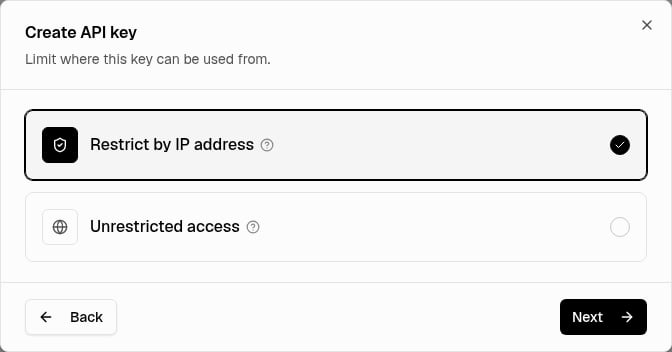
1. Select **Restrict by IP address** or **Unrestricted access**.
2. Select **Next**.
**Restrict by IP address** uses the shared broker whitelist. If the whitelist has no entries, the key cannot accept API requests.
## Read The API Keys Table
1. Select **Preset** or **Advanced**.
2. Select the required access.
3. Select **Next**.
### Select The IP Restriction
1. Select **Restrict by IP address** or **Unrestricted access**.
2. Select **Next**.
**Restrict by IP address** uses the shared broker whitelist. If the whitelist has no entries, the key cannot accept API requests.
## Read The API Keys Table
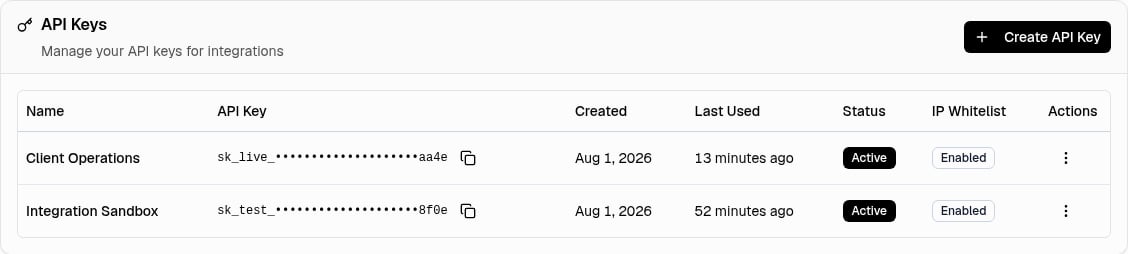 Each row shows the key name, a masked value, the creation date, and per-key **Status** and **IP Whitelist** settings. **Last Used** shows when the key last passed authentication, IP whitelist, and rate limit checks; it shows **Never** before that happens. Only an **Active** key can authenticate.
## Regenerate A Key
Regeneration replaces the secret. The old secret stops working immediately. The panel keeps the key type, name, access, status, and IP whitelist setting.
## Deactivate Or Activate A Key
Use **Deactivate** for a reversible revocation. An inactive key cannot authenticate. **Activate** makes the same key valid again.
## Delete A Key
Deletion permanently removes the key. The deleted secret cannot authenticate, and you cannot restore the key.
## Manage Allowed IP Addresses
The API firewall whitelist is shared by all API keys for the broker. Each key has its own **IP Whitelist** setting. A key with **IP Whitelist** set to **Enabled** accepts requests only from entries in the shared whitelist.
### Open The Whitelist
Each row shows the key name, a masked value, the creation date, and per-key **Status** and **IP Whitelist** settings. **Last Used** shows when the key last passed authentication, IP whitelist, and rate limit checks; it shows **Never** before that happens. Only an **Active** key can authenticate.
## Regenerate A Key
Regeneration replaces the secret. The old secret stops working immediately. The panel keeps the key type, name, access, status, and IP whitelist setting.
## Deactivate Or Activate A Key
Use **Deactivate** for a reversible revocation. An inactive key cannot authenticate. **Activate** makes the same key valid again.
## Delete A Key
Deletion permanently removes the key. The deleted secret cannot authenticate, and you cannot restore the key.
## Manage Allowed IP Addresses
The API firewall whitelist is shared by all API keys for the broker. Each key has its own **IP Whitelist** setting. A key with **IP Whitelist** set to **Enabled** accepts requests only from entries in the shared whitelist.
### Open The Whitelist
 1. Find the **API Firewall** card in **API Center**.
2. Select **Configure Settings**.
Use an exact IPv4 or IPv6 address, or a bounded IPv4 or IPv6 CIDR range, for each whitelist entry. Broad all-network `/0` ranges are not allowed. Each entry must be unique in the broker whitelist.
### Remove Entries
Removing an entry can block integrations that use it. If you remove all entries, every key with **IP Whitelist** set to **Enabled** rejects all requests.
## Errors
Use these messages to correct common problems:
* **Enter a name for this API key.** Enter a nonempty **Key name**.
* **Choose at least one access area.** Select one or more access areas.
* **Unable to create the API key right now.** Try the action again. Contact support if it continues.
* **Add at least one IP address to the whitelist before enabling this setting.** Add a valid whitelist entry first.
* **Enter a valid IPv4, IPv6, or CIDR address.** Remove spaces or correct the address format.
* **CIDR prefix length is out of range.** Enter a prefix that is valid for the IP version.
* **Broad all-network CIDR ranges are not allowed.** Enter a narrower address or range.
* **Invalid API key** with HTTP 401 means the secret is invalid, inactive, regenerated, or deleted.
* **IP address not whitelisted** with HTTP 403 means the key has IP restriction enabled and the request IP is not allowed.
1. Find the **API Firewall** card in **API Center**.
2. Select **Configure Settings**.
Use an exact IPv4 or IPv6 address, or a bounded IPv4 or IPv6 CIDR range, for each whitelist entry. Broad all-network `/0` ranges are not allowed. Each entry must be unique in the broker whitelist.
### Remove Entries
Removing an entry can block integrations that use it. If you remove all entries, every key with **IP Whitelist** set to **Enabled** rejects all requests.
## Errors
Use these messages to correct common problems:
* **Enter a name for this API key.** Enter a nonempty **Key name**.
* **Choose at least one access area.** Select one or more access areas.
* **Unable to create the API key right now.** Try the action again. Contact support if it continues.
* **Add at least one IP address to the whitelist before enabling this setting.** Add a valid whitelist entry first.
* **Enter a valid IPv4, IPv6, or CIDR address.** Remove spaces or correct the address format.
* **CIDR prefix length is out of range.** Enter a prefix that is valid for the IP version.
* **Broad all-network CIDR ranges are not allowed.** Enter a narrower address or range.
* **Invalid API key** with HTTP 401 means the secret is invalid, inactive, regenerated, or deleted.
* **IP address not whitelisted** with HTTP 403 means the key has IP restriction enabled and the request IP is not allowed.