> ## Documentation Index
> Fetch the complete documentation index at: https://broker-docs.newyorkcityservers.com/llms.txt
> Use this file to discover all available pages before exploring further.
# Email Templates
> Create, edit, preview, test, and manage broker email templates.
Use **Email Templates** to customize automated client messages. Each template belongs to one template type and one language.
## Access And Roles
Only a broker admin can open or change email templates. A broker staff user cannot use this page.
1. In the sidebar, find **Account**.
2. Select **Email Templates**.
## Template List
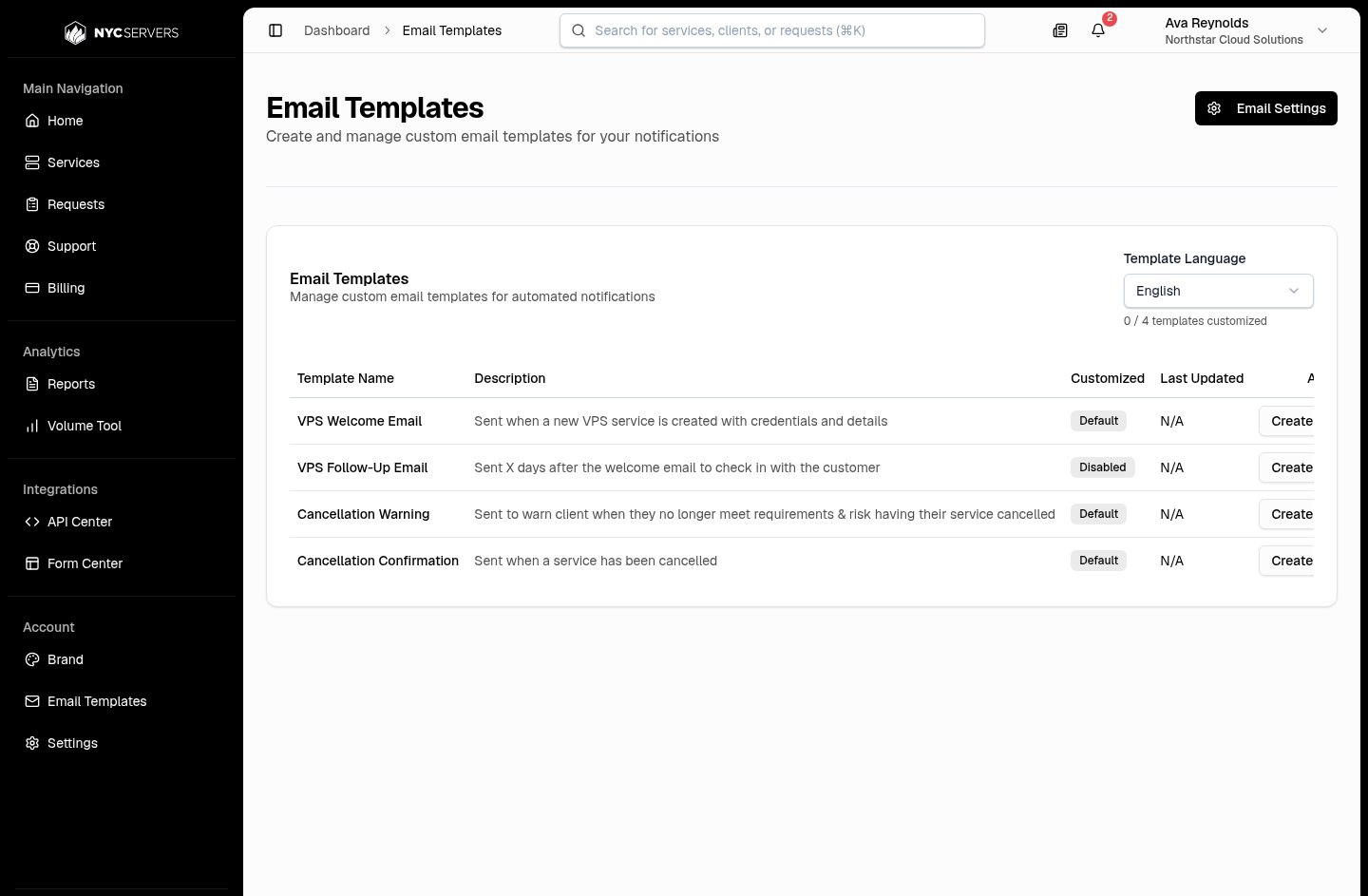 Use **Template Language** to view templates for one language. The customized count applies only to the selected language.
The list contains these template types:
| Template type | Event |
| ----------------------------- | ---------------------------------------------------------------------------------------------------- |
| **VPS Welcome Email** | The system uses this message when it creates a new VPS service with credentials and service details. |
| **VPS Follow-Up Email** | The system uses this message after the welcome email. You set the delay in days. |
| **Cancellation Warning** | The system uses this message to warn a client that the service is at risk of cancellation. |
| **Cancellation Confirmation** | The system uses this message when a service is cancelled. |
The **Customized** column shows one of these states:
| State | Meaning |
| ------------ | ----------------------------------------------------------- |
| **Custom** | A custom template exists for this type and language. |
| **Default** | No custom template exists for this type and language. |
| **Disabled** | No custom **VPS Follow-Up Email** exists for this language. |
**Last Updated** shows the last change date for a custom template. It shows **N/A** when no custom template exists.
## Create A Template
1. Select a value in **Template Language**.
2. Find the required template type.
3. Select **Create**.
4. Enter the subject in **Email Subject**.
5. Add the message HTML in **Email Body**.
Then review and save the template:
1. Copy required values from **Available Variables**.
2. Paste each value in the subject or HTML.
3. Review the result in **Live Preview**.
4. Select **Send Test Email** if you need a test.
5. Select **Save Template**.
The panel activates a new custom template when **Save Template** succeeds.
## Edit A Template
1. Select the template language.
2. Open **Manage** for a **Custom** template.
3. Select **Edit**.
4. Change the subject or HTML.
5. Select **Save Template**.
A dot next to the page title identifies unsaved changes. **Cancel** asks for confirmation when the editor contains unsaved changes. The browser also warns you before you leave or reload the page.
## Subject And Body Editor
Use **Template Language** to view templates for one language. The customized count applies only to the selected language.
The list contains these template types:
| Template type | Event |
| ----------------------------- | ---------------------------------------------------------------------------------------------------- |
| **VPS Welcome Email** | The system uses this message when it creates a new VPS service with credentials and service details. |
| **VPS Follow-Up Email** | The system uses this message after the welcome email. You set the delay in days. |
| **Cancellation Warning** | The system uses this message to warn a client that the service is at risk of cancellation. |
| **Cancellation Confirmation** | The system uses this message when a service is cancelled. |
The **Customized** column shows one of these states:
| State | Meaning |
| ------------ | ----------------------------------------------------------- |
| **Custom** | A custom template exists for this type and language. |
| **Default** | No custom template exists for this type and language. |
| **Disabled** | No custom **VPS Follow-Up Email** exists for this language. |
**Last Updated** shows the last change date for a custom template. It shows **N/A** when no custom template exists.
## Create A Template
1. Select a value in **Template Language**.
2. Find the required template type.
3. Select **Create**.
4. Enter the subject in **Email Subject**.
5. Add the message HTML in **Email Body**.
Then review and save the template:
1. Copy required values from **Available Variables**.
2. Paste each value in the subject or HTML.
3. Review the result in **Live Preview**.
4. Select **Send Test Email** if you need a test.
5. Select **Save Template**.
The panel activates a new custom template when **Save Template** succeeds.
## Edit A Template
1. Select the template language.
2. Open **Manage** for a **Custom** template.
3. Select **Edit**.
4. Change the subject or HTML.
5. Select **Save Template**.
A dot next to the page title identifies unsaved changes. **Cancel** asks for confirmation when the editor contains unsaved changes. The browser also warns you before you leave or reload the page.
## Subject And Body Editor
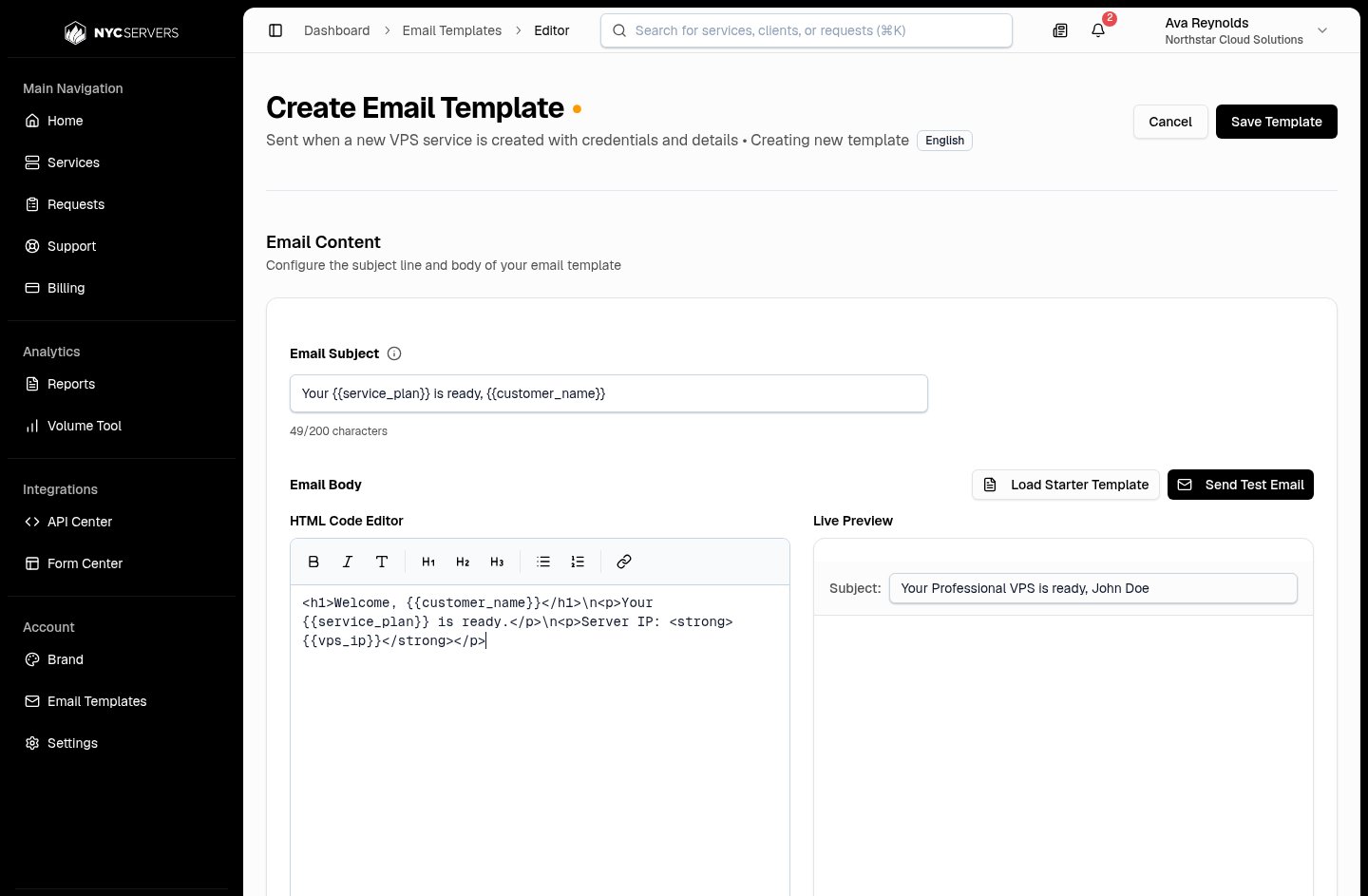 **Email Subject** accepts text and supported variables. The maximum subject length is 200 characters.
**HTML Code Editor** accepts the message body as HTML. Its toolbar can add bold text, italic text, paragraphs, headings, lists, and links.
**Load Starter Template** loads a subject and HTML for the selected template type. It replaces the current subject and body. The editor asks for confirmation when content already exists.
For **VPS Follow-Up Email**, configure the delay separately:
1. Select **Settings**.
2. Enter a value from 1 through 90 in **Send Follow-up After**.
3. Select **Save Settings**.
4. Select **Save Template**.
**Save Settings** closes the dialog and keeps the delay in the editor. **Save Template** stores the delay with the template.
## Supported Variables
Variables use double braces, such as `{{customer_name}}`. Keep the spelling and underscores unchanged.
| Template type | Supported variables |
| ----------------------------- | --------------------------------------------------------------------------------------------------------------------------- |
| All template types | `{{customer_name}}`, `{{service_plan}}`, `{{company_name}}`, `{{vps_ip}}` |
| **VPS Welcome Email** | `{{customer_email}}`, `{{vps_username}}`, `{{vps_password}}`, `{{cpu}}`, `{{ram}}`, `{{storage}}`, `{{os}}`, `{{location}}` |
| **VPS Follow-Up Email** | `{{customer_email}}`, `{{days_since_setup}}` |
| **Cancellation Warning** | `{{warning_date}}`, `{{cancellation_date}}`, `{{warning_reason}}` |
| **Cancellation Confirmation** | `{{cancellation_date}}`, `{{cancellation_reason}}`, `{{cancellation_reason_nonpayment}}`, `{{cancellation_reason_balance}}` |
Open **Available Variables** for the selected template type. This panel shows the current variable names and descriptions. Select the copy control for a variable, and then paste it into the subject or HTML.
The panel replaces supported variables when it builds a preview or message. It does not replace an unsupported variable name.
## Preview And Test
**Live Preview** updates as you change the subject or HTML. It uses sample values for the selected template type. It uses your broker company name for `{{company_name}}`. It does not use live client data.
The preview removes unsafe browser content before it displays the HTML. A preview can differ from the final result in an email client.
**Send Test Email** in the editor sends the current subject and HTML to the signed-in admin's account email. You do not need to save the changes first. The test subject includes a test label.
You can also open **Manage** and select **Send Test Email** from the template list. This action tests the saved subject and HTML.
## Safety Rules
* Use only variables from **Available Variables**.
* Do not put fixed client credentials or personal data in the HTML.
* Review all links and text that a starter template adds.
* Use **Send Test Email** before you depend on a new layout.
* Do not add scripts, forms, iframes, or other active content.
The editor warns about HTML or CSS that some email clients do not support. Examples include flexbox, grids, external style sheets, web fonts, background images, and insecure image URLs. A warning does not block the save. Review each warning before you use the template.
A successful save stores the template. It does not send a message.
## Errors
| Message or condition | Action |
| --------------------------------------------------- | --------------------------------------------------------------------- |
| **Subject is required** | Enter a non-empty subject. |
| **Email content is required** | Enter non-empty HTML. |
| **Please enter a valid delay (1-90 days)** | Set a valid **VPS Follow-Up Email** delay. |
| A template of this type and language already exists | Return to the list and edit the existing **Custom** template. |
| Invalid or oversized HTML | Correct the reported HTML issue and keep the body at or below 100 KB. |
**Email Subject** accepts text and supported variables. The maximum subject length is 200 characters.
**HTML Code Editor** accepts the message body as HTML. Its toolbar can add bold text, italic text, paragraphs, headings, lists, and links.
**Load Starter Template** loads a subject and HTML for the selected template type. It replaces the current subject and body. The editor asks for confirmation when content already exists.
For **VPS Follow-Up Email**, configure the delay separately:
1. Select **Settings**.
2. Enter a value from 1 through 90 in **Send Follow-up After**.
3. Select **Save Settings**.
4. Select **Save Template**.
**Save Settings** closes the dialog and keeps the delay in the editor. **Save Template** stores the delay with the template.
## Supported Variables
Variables use double braces, such as `{{customer_name}}`. Keep the spelling and underscores unchanged.
| Template type | Supported variables |
| ----------------------------- | --------------------------------------------------------------------------------------------------------------------------- |
| All template types | `{{customer_name}}`, `{{service_plan}}`, `{{company_name}}`, `{{vps_ip}}` |
| **VPS Welcome Email** | `{{customer_email}}`, `{{vps_username}}`, `{{vps_password}}`, `{{cpu}}`, `{{ram}}`, `{{storage}}`, `{{os}}`, `{{location}}` |
| **VPS Follow-Up Email** | `{{customer_email}}`, `{{days_since_setup}}` |
| **Cancellation Warning** | `{{warning_date}}`, `{{cancellation_date}}`, `{{warning_reason}}` |
| **Cancellation Confirmation** | `{{cancellation_date}}`, `{{cancellation_reason}}`, `{{cancellation_reason_nonpayment}}`, `{{cancellation_reason_balance}}` |
Open **Available Variables** for the selected template type. This panel shows the current variable names and descriptions. Select the copy control for a variable, and then paste it into the subject or HTML.
The panel replaces supported variables when it builds a preview or message. It does not replace an unsupported variable name.
## Preview And Test
**Live Preview** updates as you change the subject or HTML. It uses sample values for the selected template type. It uses your broker company name for `{{company_name}}`. It does not use live client data.
The preview removes unsafe browser content before it displays the HTML. A preview can differ from the final result in an email client.
**Send Test Email** in the editor sends the current subject and HTML to the signed-in admin's account email. You do not need to save the changes first. The test subject includes a test label.
You can also open **Manage** and select **Send Test Email** from the template list. This action tests the saved subject and HTML.
## Safety Rules
* Use only variables from **Available Variables**.
* Do not put fixed client credentials or personal data in the HTML.
* Review all links and text that a starter template adds.
* Use **Send Test Email** before you depend on a new layout.
* Do not add scripts, forms, iframes, or other active content.
The editor warns about HTML or CSS that some email clients do not support. Examples include flexbox, grids, external style sheets, web fonts, background images, and insecure image URLs. A warning does not block the save. Review each warning before you use the template.
A successful save stores the template. It does not send a message.
## Errors
| Message or condition | Action |
| --------------------------------------------------- | --------------------------------------------------------------------- |
| **Subject is required** | Enter a non-empty subject. |
| **Email content is required** | Enter non-empty HTML. |
| **Please enter a valid delay (1-90 days)** | Set a valid **VPS Follow-Up Email** delay. |
| A template of this type and language already exists | Return to the list and edit the existing **Custom** template. |
| Invalid or oversized HTML | Correct the reported HTML issue and keep the body at or below 100 KB. |