> ## Documentation Index
> Fetch the complete documentation index at: https://broker-docs.newyorkcityservers.com/llms.txt
> Use this file to discover all available pages before exploring further.
# Brand
> Set broker brand colors and manage image assets in the Brand page.
The **Brand Assets** page stores your broker colors and image assets.
## Access And Roles
 You must have the Admin role to open **Brand**. A Staff user who tries to open this page sees **Access Denied**.
To open the page:
1. Open the **Account** section in the sidebar.
2. Select **Brand**.
## Brand Colors
The **Brand Colors** dialog has these settings:
* **Primary Color**
* **Secondary Color**
* **Accent Color**
Each setting has a color picker and a text field. The text value must use the `#RRGGBB` hex format.
To save the colors:
1. Select **Brand Colors**.
2. Set **Primary Color**.
3. Set **Secondary Color**.
4. Set **Accent Color**.
5. Select **Save Colors**.
The message **Brand colors updated successfully** confirms the change. Select **Cancel** to discard changes made after you opened the dialog.
## Where The Colors And Assets Are Used
The form builder can use items from the **Brand** page:
* **Select Logo** in the form **Appearance** settings opens the brand asset library.
* **Import Brand Colors** copies the saved Primary Color to the form's Primary Color and the saved Accent Color to the form's Accent Color. Secondary Color is not imported because forms do not have a secondary color setting.
## Asset Library
The **Asset Library** shows each uploaded image as a card. Each card shows the image preview, file name, file size, and upload date.
The card actions have these results:
* **Copy URL** copies the asset URL to the clipboard.
* The external-link control opens the asset in a new browser tab.
* The trash control opens **Delete Asset**.
The page shows **No assets uploaded yet** when the library is empty.
## Supported Asset Types And Limits
You can upload these image types:
* PNG
* JPG
* GIF
* WebP
The maximum file size is 5 MB. Upload one file at a time. SVG files are not supported.
## Upload An Asset
You must have the Admin role to open **Brand**. A Staff user who tries to open this page sees **Access Denied**.
To open the page:
1. Open the **Account** section in the sidebar.
2. Select **Brand**.
## Brand Colors
The **Brand Colors** dialog has these settings:
* **Primary Color**
* **Secondary Color**
* **Accent Color**
Each setting has a color picker and a text field. The text value must use the `#RRGGBB` hex format.
To save the colors:
1. Select **Brand Colors**.
2. Set **Primary Color**.
3. Set **Secondary Color**.
4. Set **Accent Color**.
5. Select **Save Colors**.
The message **Brand colors updated successfully** confirms the change. Select **Cancel** to discard changes made after you opened the dialog.
## Where The Colors And Assets Are Used
The form builder can use items from the **Brand** page:
* **Select Logo** in the form **Appearance** settings opens the brand asset library.
* **Import Brand Colors** copies the saved Primary Color to the form's Primary Color and the saved Accent Color to the form's Accent Color. Secondary Color is not imported because forms do not have a secondary color setting.
## Asset Library
The **Asset Library** shows each uploaded image as a card. Each card shows the image preview, file name, file size, and upload date.
The card actions have these results:
* **Copy URL** copies the asset URL to the clipboard.
* The external-link control opens the asset in a new browser tab.
* The trash control opens **Delete Asset**.
The page shows **No assets uploaded yet** when the library is empty.
## Supported Asset Types And Limits
You can upload these image types:
* PNG
* JPG
* GIF
* WebP
The maximum file size is 5 MB. Upload one file at a time. SVG files are not supported.
## Upload An Asset
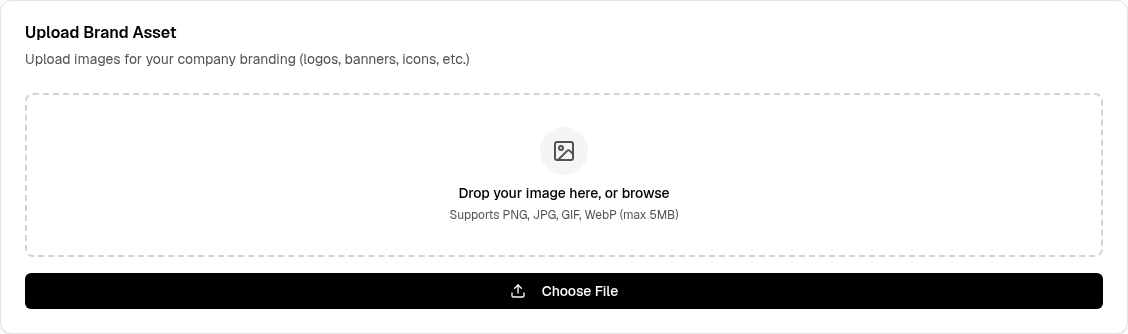 1. Select **Upload Asset**.
2. Select **Choose File**.
3. Select a supported image.
The upload starts after you select the file. You can also drop one image in the upload area.
The message **Asset uploaded successfully** confirms the upload. The new card appears in the **Asset Library**.
## Replace An Asset
Upload the new asset first. Then update the logo for each form that uses the old asset in [Form Center](/broker/integrations/form-center). After updating every use of the old asset, you can delete it.
## Delete An Asset
Deleting an asset permanently removes the file. This action cannot be undone. A copied URL for that asset no longer provides the file.
1. Select the trash control on the asset card.
2. Review the **Delete Asset** message.
3. Select **Delete**.
The message **Asset deleted successfully** confirms the deletion.
## Validation And Errors
The panel checks the file before upload. It can show these messages:
* **Please upload an image file** means that the selected file is not an image.
* **File size must be less than 5MB** means that the selected file is too large.
* **Failed to upload asset** means that the upload did not complete. The message can include the returned reason.
The server accepts only PNG, JPG, GIF, and WebP image content. An unsupported image type causes **Failed to upload asset** with the supported-type requirement.
A color value that is not in `#RRGGBB` format causes **Invalid color format. Use hex format (#RRGGBB)**. A different save failure causes **Failed to update brand colors** or shows the returned reason.
A failed deletion shows **Failed to delete asset** and the returned reason. The asset stays in the library when the delete action does not complete.
1. Select **Upload Asset**.
2. Select **Choose File**.
3. Select a supported image.
The upload starts after you select the file. You can also drop one image in the upload area.
The message **Asset uploaded successfully** confirms the upload. The new card appears in the **Asset Library**.
## Replace An Asset
Upload the new asset first. Then update the logo for each form that uses the old asset in [Form Center](/broker/integrations/form-center). After updating every use of the old asset, you can delete it.
## Delete An Asset
Deleting an asset permanently removes the file. This action cannot be undone. A copied URL for that asset no longer provides the file.
1. Select the trash control on the asset card.
2. Review the **Delete Asset** message.
3. Select **Delete**.
The message **Asset deleted successfully** confirms the deletion.
## Validation And Errors
The panel checks the file before upload. It can show these messages:
* **Please upload an image file** means that the selected file is not an image.
* **File size must be less than 5MB** means that the selected file is too large.
* **Failed to upload asset** means that the upload did not complete. The message can include the returned reason.
The server accepts only PNG, JPG, GIF, and WebP image content. An unsupported image type causes **Failed to upload asset** with the supported-type requirement.
A color value that is not in `#RRGGBB` format causes **Invalid color format. Use hex format (#RRGGBB)**. A different save failure causes **Failed to update brand colors** or shows the returned reason.
A failed deletion shows **Failed to delete asset** and the returned reason. The asset stays in the library when the delete action does not complete.