> ## Documentation Index
> Fetch the complete documentation index at: https://broker-docs.newyorkcityservers.com/llms.txt
> Use this file to discover all available pages before exploring further.
# Payment Methods & Autopay
> Manage cards, understand automatic billing with the default card, and find Bank Wire Transfer instructions.
Payment method management is available only to an Admin. A Staff user cannot open **Billing** or **Payment Methods**. The panel sends a Staff user to the unauthorized page.
## Before You Change A Payment Method
Your broker account uses one billing method.
* **Credit Card:** The panel uses the **Default** card for automatic billing. A pending invoice shows the card and scheduled charge date when automatic billing applies.
* **Bank Wire Transfer** uses manual settlement.
The first saved card becomes the **Default** card. This occurs even if you clear **Set as default payment method**. You cannot remove the current **Default** card from the **Payment Methods** page. Set another saved card as the default before you remove the old card.
## Add A New Credit Card
### Open The Card Form
 1. Open **Billing**.
2. Select **Manage Payment Methods**.
3. Select **Add Payment Method** if no card is saved.
If a card is already saved, select **Add Card** instead.
### Save The Card
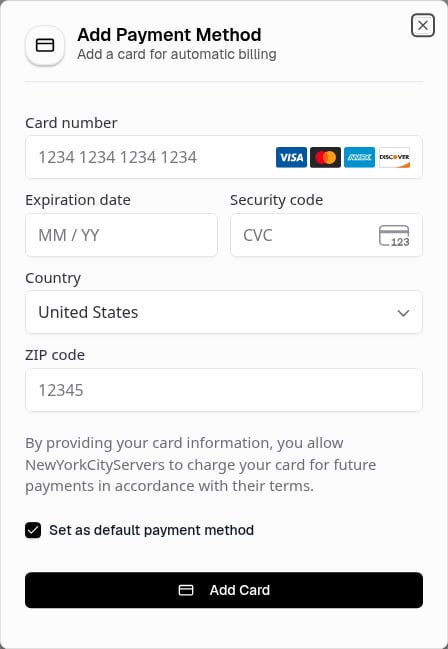
1. Enter the card details in **Add Payment Method**.
2. Complete card verification if the secure card form requests it.
3. Select or clear **Set as default payment method**.
4. Select **Add Card**.
The panel shows **Payment method added successfully** after it saves the card.
## Confirm Setup
The panel saves the card only after the payment setup succeeds. The saved card shows its brand, last four digits, and expiry date on **Payment Methods**. The default card also shows the **Default** label.
If setup does not finish, the panel shows **Payment setup was not completed**. The card is not added. If card verification opens, complete it before you submit the form again.
## Choose The Default Card
Changing the default changes the card that the panel uses for automatic billing.
1. Open **Billing**.
2. Select **Manage Payment Methods**.
3. Select **Add Payment Method** if no card is saved.
If a card is already saved, select **Add Card** instead.
### Save The Card
1. Enter the card details in **Add Payment Method**.
2. Complete card verification if the secure card form requests it.
3. Select or clear **Set as default payment method**.
4. Select **Add Card**.
The panel shows **Payment method added successfully** after it saves the card.
## Confirm Setup
The panel saves the card only after the payment setup succeeds. The saved card shows its brand, last four digits, and expiry date on **Payment Methods**. The default card also shows the **Default** label.
If setup does not finish, the panel shows **Payment setup was not completed**. The card is not added. If card verification opens, complete it before you submit the form again.
## Choose The Default Card
Changing the default changes the card that the panel uses for automatic billing.
 1. Open **Payment Methods**.
2. Find the saved card.
3. Select **Set Default**.
The selected card shows **Default**. The panel shows **Default payment method updated**.
## Replace Or Remove A Card
The page does not provide an action to edit card details. Add a replacement card when card details change or when a card shows **Expired**.
1. Add the replacement card.
2. Select **Set Default** on the replacement if it does not show **Default**.
3. Select the trash icon for the old card.
4. Review the card in **Remove Payment Method**.
5. Select **Remove**.
Removal cannot be undone. The panel shows **Payment method removed** after a successful removal.
If you select the trash icon for the default card, the panel shows **Cannot remove default payment method**. Set another card as the default first.
## Autopay
Autopay charges eligible invoices to the **Default** card each billing cycle. Adding a card and making it the default enables automatic billing; there is no separate Autopay toggle. Contact support if you need to stop automatic charges.
1. Open **Payment Methods**.
2. Find the saved card.
3. Select **Set Default**.
The selected card shows **Default**. The panel shows **Default payment method updated**.
## Replace Or Remove A Card
The page does not provide an action to edit card details. Add a replacement card when card details change or when a card shows **Expired**.
1. Add the replacement card.
2. Select **Set Default** on the replacement if it does not show **Default**.
3. Select the trash icon for the old card.
4. Review the card in **Remove Payment Method**.
5. Select **Remove**.
Removal cannot be undone. The panel shows **Payment method removed** after a successful removal.
If you select the trash icon for the default card, the panel shows **Cannot remove default payment method**. Set another card as the default first.
## Autopay
Autopay charges eligible invoices to the **Default** card each billing cycle. Adding a card and making it the default enables automatic billing; there is no separate Autopay toggle. Contact support if you need to stop automatic charges.
 An invoice is charged automatically when all these conditions apply:
* Your account uses Card billing. Bank Wire Transfer accounts do not use Autopay.
* The invoice has a Pending status and an amount due.
* The invoice is set for automatic charge.
* You have a default payment method.
### If An Automatic Charge Fails
The invoice stays Pending when the charge does not complete. Open the invoice and review **Payment History**. If **Payment Alerts** is on in your notification settings, you receive an email when a payment succeeds or fails.
To resolve a failed charge:
1. Add a valid card if necessary and set it as **Default**.
2. Open the Pending invoice.
3. Select **Pay Now**.
## Pay By Bank Wire
Do not send a wire if the invoice does not show complete **Wire Instructions**. Contact support before you send payment.
Each eligible invoice provides its own receiving details and **Invoice Memo**.
1. Open **Billing**.
2. Open the unpaid invoice.
3. Review **Wire Instructions**.
4. Use the receiving details shown on that invoice.
5. Include the **Invoice Memo** exactly as shown.
An invoice is charged automatically when all these conditions apply:
* Your account uses Card billing. Bank Wire Transfer accounts do not use Autopay.
* The invoice has a Pending status and an amount due.
* The invoice is set for automatic charge.
* You have a default payment method.
### If An Automatic Charge Fails
The invoice stays Pending when the charge does not complete. Open the invoice and review **Payment History**. If **Payment Alerts** is on in your notification settings, you receive an email when a payment succeeds or fails.
To resolve a failed charge:
1. Add a valid card if necessary and set it as **Default**.
2. Open the Pending invoice.
3. Select **Pay Now**.
## Pay By Bank Wire
Do not send a wire if the invoice does not show complete **Wire Instructions**. Contact support before you send payment.
Each eligible invoice provides its own receiving details and **Invoice Memo**.
1. Open **Billing**.
2. Open the unpaid invoice.
3. Review **Wire Instructions**.
4. Use the receiving details shown on that invoice.
5. Include the **Invoice Memo** exactly as shown.