> ## Documentation Index
> Fetch the complete documentation index at: https://broker-docs.newyorkcityservers.com/llms.txt
> Use this file to discover all available pages before exploring further.
# Invoices
> View invoice history, open invoice details, make available payments, and get invoice PDFs.
The **Billing & Invoices** page (sidebar) shows the invoice history for your broker account. Only an Admin can open this page or its invoice detail pages. A Staff user is sent to the unauthorized page.
The **Invoice History** table shows 10 results on each page. It shows the newest invoice issue dates first when the page opens.
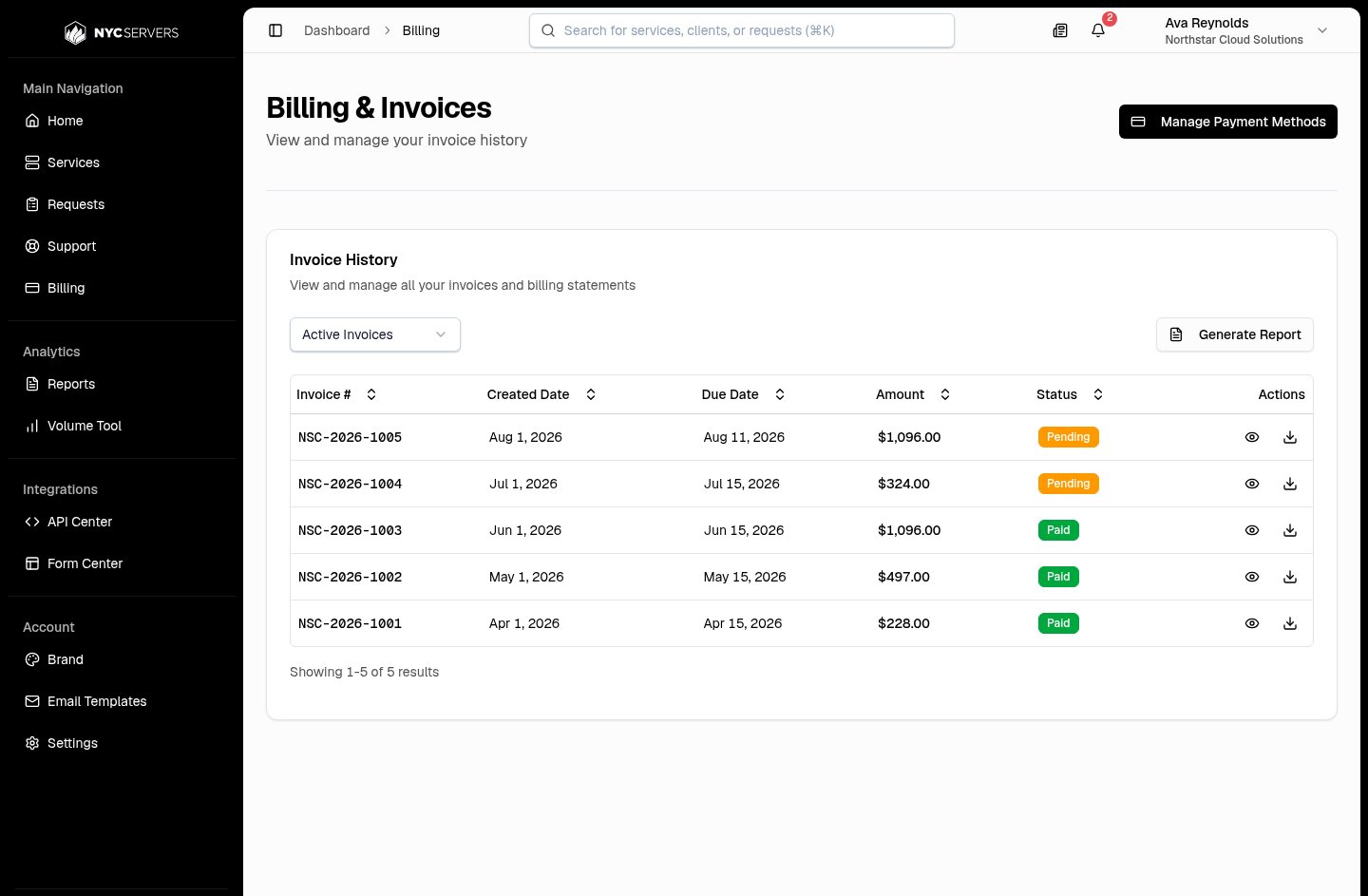 Each row shows the invoice number, issue date, due date, amount, status, and actions to open the invoice or download its PDF. Select a column heading to sort ascending or descending; sorting applies to the complete invoice history before the API returns each 10-result page.
Select **Generate Report** to open **Invoice Report**.
## Open Invoice Details
1. Find the invoice in **Invoice History**.
2. Select **View Details** in **Actions**.
The invoice detail page shows the invoice number in the title. Use the back control beside the title to return to **Billing & Invoices**.
An invoice does not open if it is a draft, belongs to another broker account, or does not exist.
## Review Invoice Details
Each row shows the invoice number, issue date, due date, amount, status, and actions to open the invoice or download its PDF. Select a column heading to sort ascending or descending; sorting applies to the complete invoice history before the API returns each 10-result page.
Select **Generate Report** to open **Invoice Report**.
## Open Invoice Details
1. Find the invoice in **Invoice History**.
2. Select **View Details** in **Actions**.
The invoice detail page shows the invoice number in the title. Use the back control beside the title to return to **Billing & Invoices**.
An invoice does not open if it is a draft, belongs to another broker account, or does not exist.
## Review Invoice Details
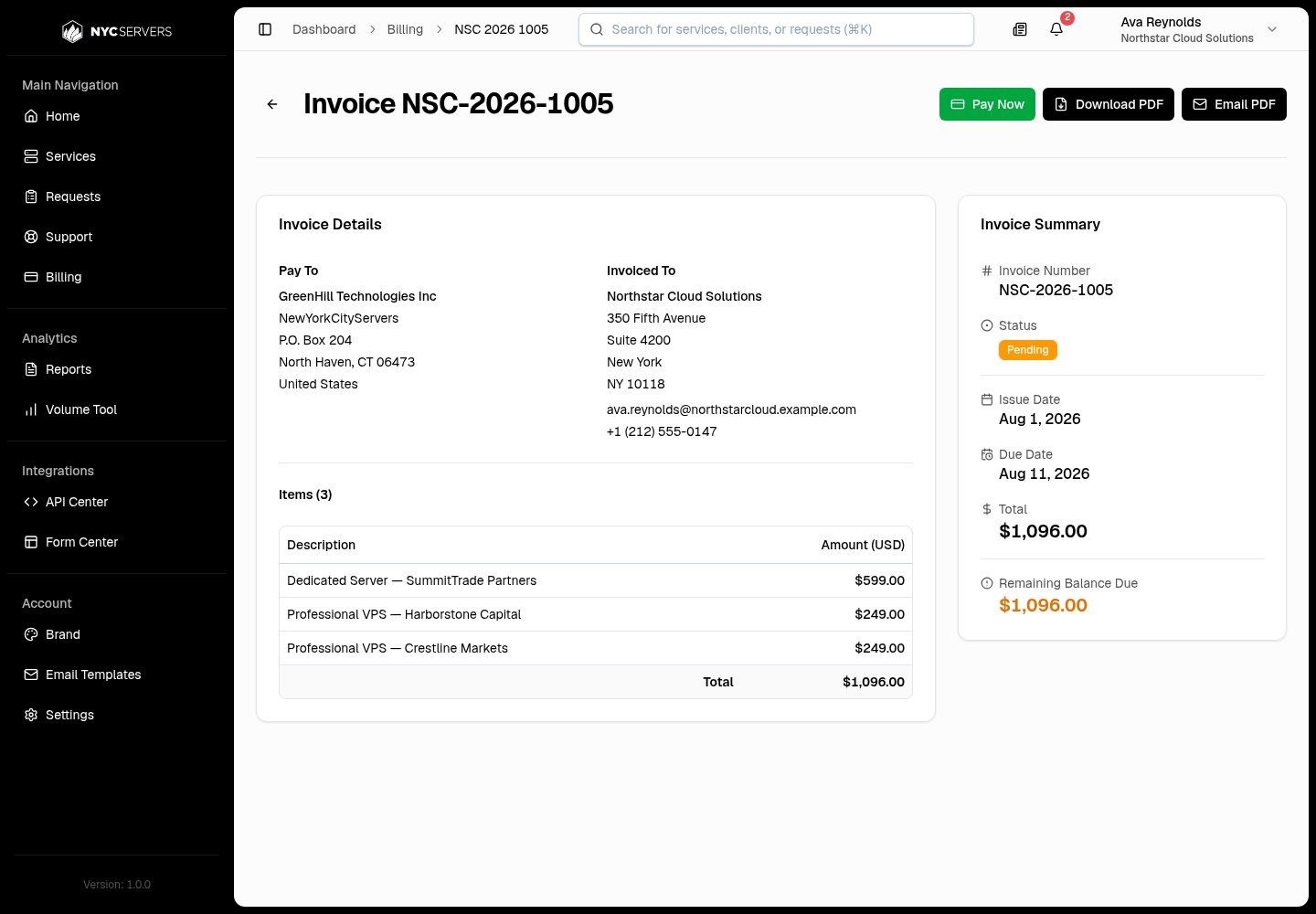 **Invoice Details** shows these address sections:
* **Pay To** shows the NYCServers company and address.
* **Invoiced To** shows the available company name, address, email address, and phone number for your broker account.
The **Items** count shows the number of line items. Each line item shows **Description** and **Amount (USD)**. If the item has a start date and an end date, the description also shows that period. The final row shows **Total** in the invoice currency. If the invoice has no line items, this section shows **No items**.
**Invoice Summary** shows:
* **Invoice Number**
* **Status**
* **Issue Date**
* **Due Date**
* **Date Paid** for a paid invoice that has a payment date
* **Total**
* **Remaining Balance Due** when an invoice is not paid and has an amount due
## Review Payment History
**Payment History** appears when the invoice has at least one payment record. It shows these fields:
| Field | What it shows |
| ------------- | ----------------------------------------------------------------------------------------- |
| **Date** | The payment date. |
| **Billed To** | The card brand and last four digits, **Bank Wire**, or a dash when no value is available. |
| **Status** | **Succeeded**, **Pending**, **Failed**, or **Refunded**. |
| **Amount** | The payment amount and currency. A refunded payment also shows the refunded amount. |
## Pay A Pending Card Invoice
**Pay Now** appears only when all these conditions apply:
* The broker account uses card billing.
* The invoice status is **Pending**.
* The invoice has an amount due.
The payment uses the default payment method for the broker account.
1. Select **Pay Now**.
2. Wait for the payment result.
A successful payment shows **Payment successful**. The page then refreshes the invoice data.
If payment cannot complete, the page shows **Payment failed** and an error description. For example, payment cannot start when no payment method is on file or when another charge for the invoice is in progress.
If a default card is available for a pending invoice, a notice states that the card will be charged automatically on the due date. It identifies the card by its last four digits.
## Pay By Bank Wire
**Pay Now** is not available when the broker account uses Bank Wire Transfer. For a pending invoice with an amount due, the page directs you to **Wire Instructions**.
When wire instructions are ready, the panel can show these fields:
| Field | Availability |
| --------------------------- | ------------------------------ |
| **Bank Name** | Shown when available. |
| **Routing Number** | Shown when available. |
| **Receiving Account** | Shown when available. |
| **Beneficiary** | Shown when available. |
| **Beneficiary Address** | Shown when available. |
| **SWIFT/BIC or Wire Code** | Shown when available. |
| **Invoice Memo** | Shown with the memo help text. |
| **Additional Instructions** | Shown when available. |
Review the help text beside **Invoice Memo** before you send payment. If wire instructions are not ready, the page shows an unavailable message and does not show the **Wire Instructions** panel.
## Download An Invoice PDF
Select **Download Invoice** in the **Invoice History** row, or **Download PDF** on the invoice detail page.
The browser downloads `invoice-[invoice number].pdf`. The PDF contains the invoice addresses, dates, status, line items, total, applicable balance due, and available payment history. It also contains available notes. A pending bank wire invoice includes available wire instructions.
If the detail-page download fails, the page shows **Failed to download invoice**.
## Email An Invoice PDF
**Email PDF** sends the invoice PDF to the email address of the signed-in Admin user.
1. Open the invoice.
2. Select **Email PDF**.
3. Wait for **Invoice sent successfully**.
The message includes the PDF as `invoice-[invoice number].pdf`. If the email cannot be sent, the page shows **Failed to send email** and an error description.
Draft invoices are not available on the list, detail page, PDF action, or email action.
**Invoice Details** shows these address sections:
* **Pay To** shows the NYCServers company and address.
* **Invoiced To** shows the available company name, address, email address, and phone number for your broker account.
The **Items** count shows the number of line items. Each line item shows **Description** and **Amount (USD)**. If the item has a start date and an end date, the description also shows that period. The final row shows **Total** in the invoice currency. If the invoice has no line items, this section shows **No items**.
**Invoice Summary** shows:
* **Invoice Number**
* **Status**
* **Issue Date**
* **Due Date**
* **Date Paid** for a paid invoice that has a payment date
* **Total**
* **Remaining Balance Due** when an invoice is not paid and has an amount due
## Review Payment History
**Payment History** appears when the invoice has at least one payment record. It shows these fields:
| Field | What it shows |
| ------------- | ----------------------------------------------------------------------------------------- |
| **Date** | The payment date. |
| **Billed To** | The card brand and last four digits, **Bank Wire**, or a dash when no value is available. |
| **Status** | **Succeeded**, **Pending**, **Failed**, or **Refunded**. |
| **Amount** | The payment amount and currency. A refunded payment also shows the refunded amount. |
## Pay A Pending Card Invoice
**Pay Now** appears only when all these conditions apply:
* The broker account uses card billing.
* The invoice status is **Pending**.
* The invoice has an amount due.
The payment uses the default payment method for the broker account.
1. Select **Pay Now**.
2. Wait for the payment result.
A successful payment shows **Payment successful**. The page then refreshes the invoice data.
If payment cannot complete, the page shows **Payment failed** and an error description. For example, payment cannot start when no payment method is on file or when another charge for the invoice is in progress.
If a default card is available for a pending invoice, a notice states that the card will be charged automatically on the due date. It identifies the card by its last four digits.
## Pay By Bank Wire
**Pay Now** is not available when the broker account uses Bank Wire Transfer. For a pending invoice with an amount due, the page directs you to **Wire Instructions**.
When wire instructions are ready, the panel can show these fields:
| Field | Availability |
| --------------------------- | ------------------------------ |
| **Bank Name** | Shown when available. |
| **Routing Number** | Shown when available. |
| **Receiving Account** | Shown when available. |
| **Beneficiary** | Shown when available. |
| **Beneficiary Address** | Shown when available. |
| **SWIFT/BIC or Wire Code** | Shown when available. |
| **Invoice Memo** | Shown with the memo help text. |
| **Additional Instructions** | Shown when available. |
Review the help text beside **Invoice Memo** before you send payment. If wire instructions are not ready, the page shows an unavailable message and does not show the **Wire Instructions** panel.
## Download An Invoice PDF
Select **Download Invoice** in the **Invoice History** row, or **Download PDF** on the invoice detail page.
The browser downloads `invoice-[invoice number].pdf`. The PDF contains the invoice addresses, dates, status, line items, total, applicable balance due, and available payment history. It also contains available notes. A pending bank wire invoice includes available wire instructions.
If the detail-page download fails, the page shows **Failed to download invoice**.
## Email An Invoice PDF
**Email PDF** sends the invoice PDF to the email address of the signed-in Admin user.
1. Open the invoice.
2. Select **Email PDF**.
3. Wait for **Invoice sent successfully**.
The message includes the PDF as `invoice-[invoice number].pdf`. If the email cannot be sent, the page shows **Failed to send email** and an error description.
Draft invoices are not available on the list, detail page, PDF action, or email action.